


Updated Rules checked 2026-10-13
Gate requires every user to complete KYC (identity verification). The official FAQ is blunt about it: “You need to complete identity verification before making deposits or withdrawals,” and a 2023 KYC announcement also states that all customers must complete KYC before they can start trading. On an unverified account, withdrawals, deposits, trading, payments and C2C are all locked in the Verification Center.
You need a valid, government-issued ID (national ID card, passport or driver’s license) and a phone that can take photos and run face recognition, or a computer with a camera. Gate’s official pages give the review time in several ways: the web guide says review is automatic within a few minutes and may take up to 1 business day; the app guide says manual review, if needed, may take 1-3 business days; the KYC FAQ says it usually takes 10 minutes to 12 hours. I list all three versions and their sources below.
Key points: Gate requires all users to complete KYC, and you must pass identity verification before you can deposit or withdraw. Personal identity verification has three parts: basic information, ID photos and face recognition, and if face recognition fails you can switch to gesture recognition. The ID must be a physical, government-issued document that is still valid; photocopies, scans, photos of a screen and edited photos are not accepted, and images must be JPG or PNG between 10KB and 4MB. Gate’s official pages describe the review time in three ways: a few minutes to at most 1 business day, 1-3 business days for manual review, and usually 10 minutes to 12 hours. Address verification is optional, and completing it can raise your withdrawal limit.
The information below was checked against Gate’s official documentation on 2026-10-13 (fact-check date). The screenshots come from the official help center and are provided for reference.
Not signed up yet? Enter the referral code before KYC
KYC happens after you register, while the referral code goes on the sign-up page. If you want to use a referral code, register first by following the steps in the Gate referral code guide, then come back here for identity verification.
Our Gate referral code is KEVINXYZ; just enter it when you sign up.
That said, I couldn’t find any official Gate process for adding a referral code later, and the official rules state that each user can register through only one referral method. In other words, if you don’t enter a code when you sign up, you most likely can’t add one afterward. I’ve collected the detailed rules in how to switch your Gate referral code.
What are Gate’s KYC levels, and what does each unlock?
Gate’s help center doesn’t publish a table of levels or the withdrawal limit for each level. The current personal process consists of a single “Identity Verification” (basic information, ID and face recognition) plus an optional “Address Verification.” The 2023 announcement says Gate uses tiers based on risk and that, after KYC1, some products, trading and withdrawal amounts may still be restricted, but it doesn’t give numbers either. Based on the official text and official screenshots, here’s how it breaks down:
| Status | What you submit | What you can do | Limits |
|---|---|---|---|
| Unverified | Registration details only | The Verification Center shows withdrawals, deposits, trading, payments and C2C all locked; the official FAQ states that identity verification is required before deposits and withdrawals | Not applicable |
| Identity verification (verified) | Country of residence, nationality, ID type; ID photos; face recognition (or gesture recognition) | The “Unlocked features” list in the app screenshot shows withdrawals, deposits, trading and C2C; the web screen also lists payments | Not listed in the official guide; the withdrawal limit in the app screenshot is pixelated by Gate |
| Address verification (optional) | Country of residence, province/city, full address, optional postal code; proof of address if requested | Gate says completing it “raises your account permissions and gives you a higher withdrawal limit” | Not listed in the official guide |
Sources: How to complete identity verification on Gate (web), Identity verification (KYC) FAQ, Clarifications on Gate’s KYC Measures. The web guide also notes that although address verification is optional, Gate may still ask you to complete it for compliance, a higher limit or a security review. Business accounts go through a separate corporate verification, which this article doesn’t cover. Futures trading is likewise only available after verification; futures use leverage, and if the price moves against you, your position may be forcibly liquidated.
What do you need for Gate KYC?
- ID document: the official wording is “a valid government-issued ID, such as a passport, driver’s license or national ID card.” In the process you first choose your country of residence, nationality and ID type, and which IDs you can pick depends on what the page shows; Gate also states that “verification requirements may differ by country or region.”
- ID requirements: the ID must be within its validity period, and “you must photograph the physical document; photocopies, scans, photos of a screen, and edited or filtered images are not supported.” The app’s photo tips also show cropped, blurry and glare shots as wrong examples.
- Photo specs: the web guide says files must be larger than 10KB and no more than 4MB, in JPG or PNG format; photos must be clear and complete, with nothing covering them, no glare and no watermarks.
- Face recognition: you must do it yourself, and Gate states “do not use another person’s photo or video for verification.” Make sure the lighting is good, and don’t wear a hat, mask or sunglasses. If you do it on a computer, you need a working webcam.
- Gesture recognition (backup): if face recognition isn’t available or keeps failing, you can upload your ID and 4 photos of specified hand gestures instead.
- Personal details: the name you enter must exactly match the name on your ID, and neither the name nor the ID number may contain special characters. There’s also an age requirement: users under 18 can’t complete identity verification for now.
Gate app KYC steps
The screenshots in the official guide show the Simplified Chinese interface, and the button names below are translated from the wording in the official Traditional Chinese guide. The actual labels and layout in your app may not match the screenshots exactly.
- Open the Gate app and log in, tap your avatar in the top-left corner, tap the avatar again to open “Profile,” then tap “Identity Verification.”
- In the Verification Center, tap “Verify.”
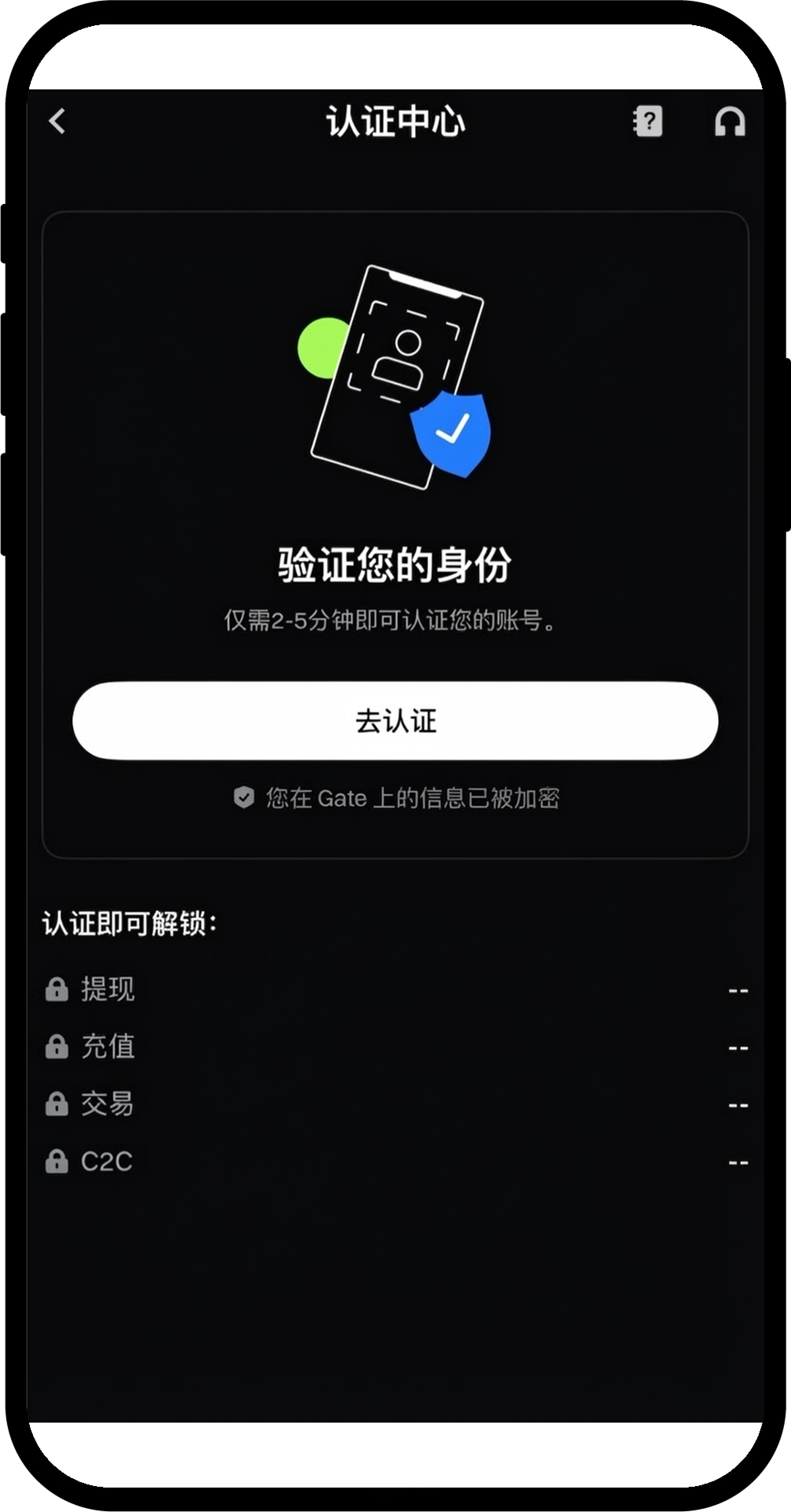
Image source: Gate Help Center
- Choose your nationality, country of residence and ID type (national ID card, passport or driver’s license), then tap “Next.”
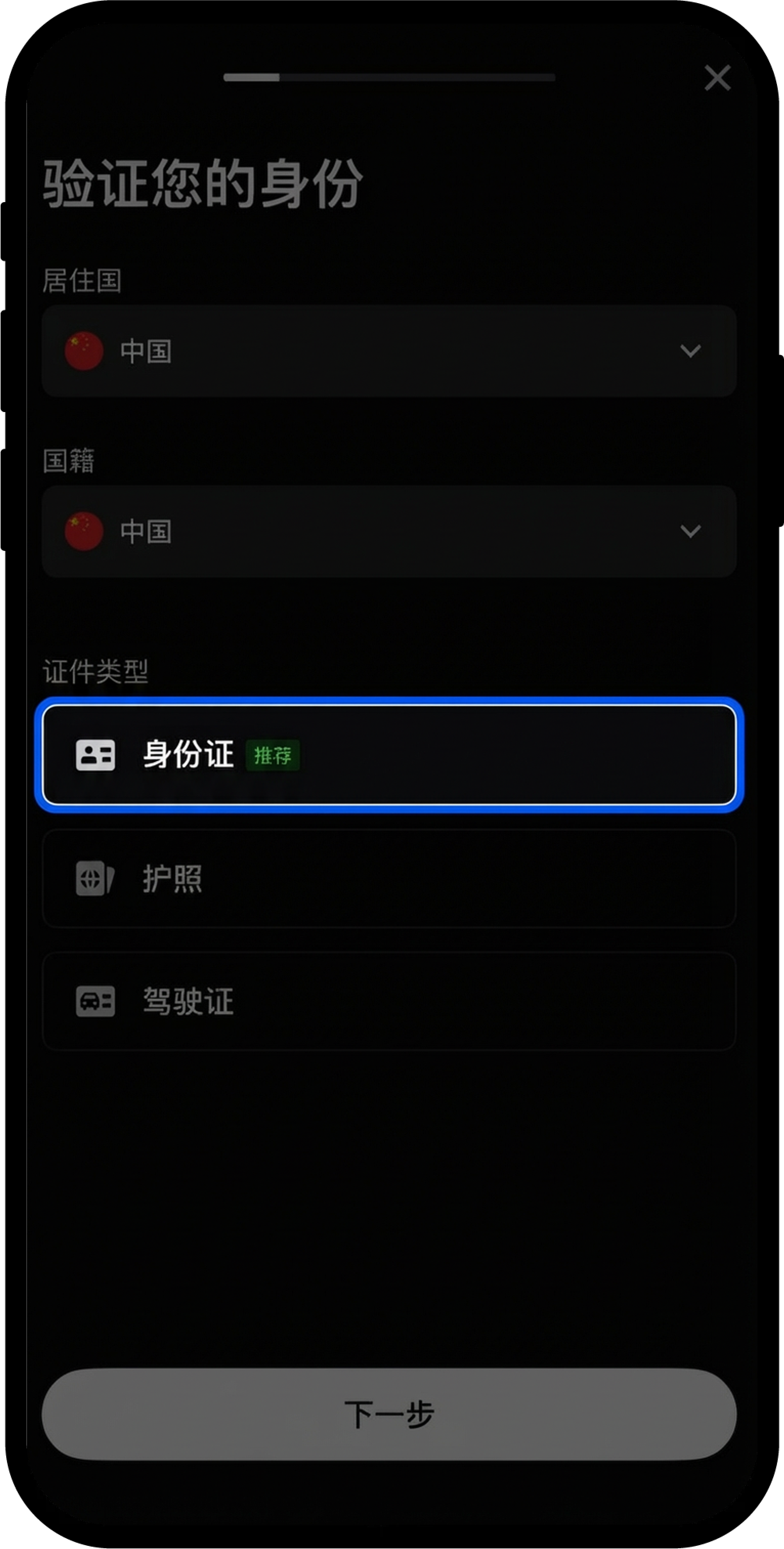
Image source: Gate Help Center
- Read the ID photo tips, tap “I’m ready,” and follow the instructions to photograph or upload the front and back of your ID.
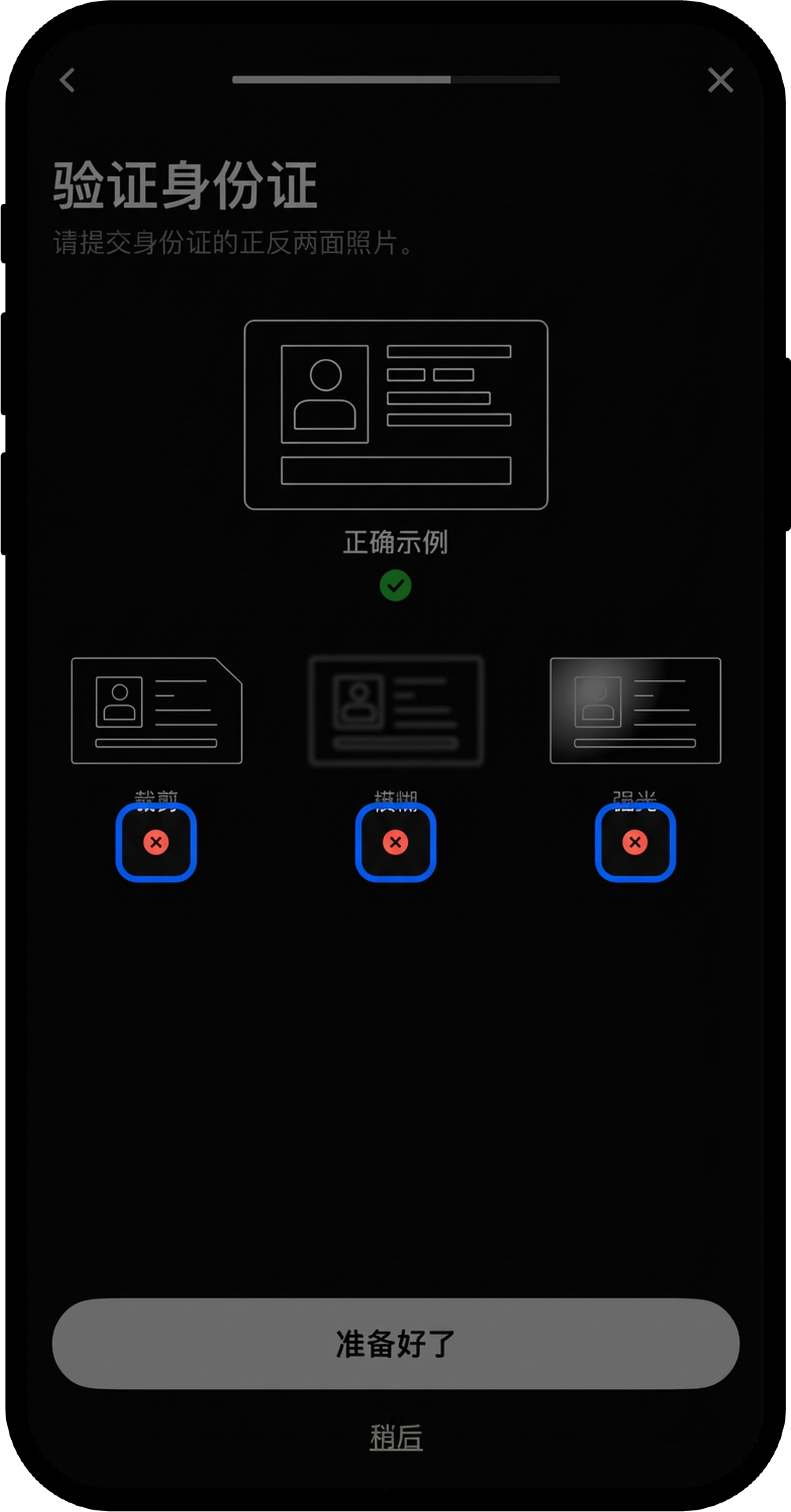
Image source: Gate Help Center
- Complete face recognition. If it fails, you can choose “Gesture Recognition” instead.
- Check the name and ID number the system read. If they match your ID, tap “Next”; if something is wrong, tap “Edit Info” and fill it in again.
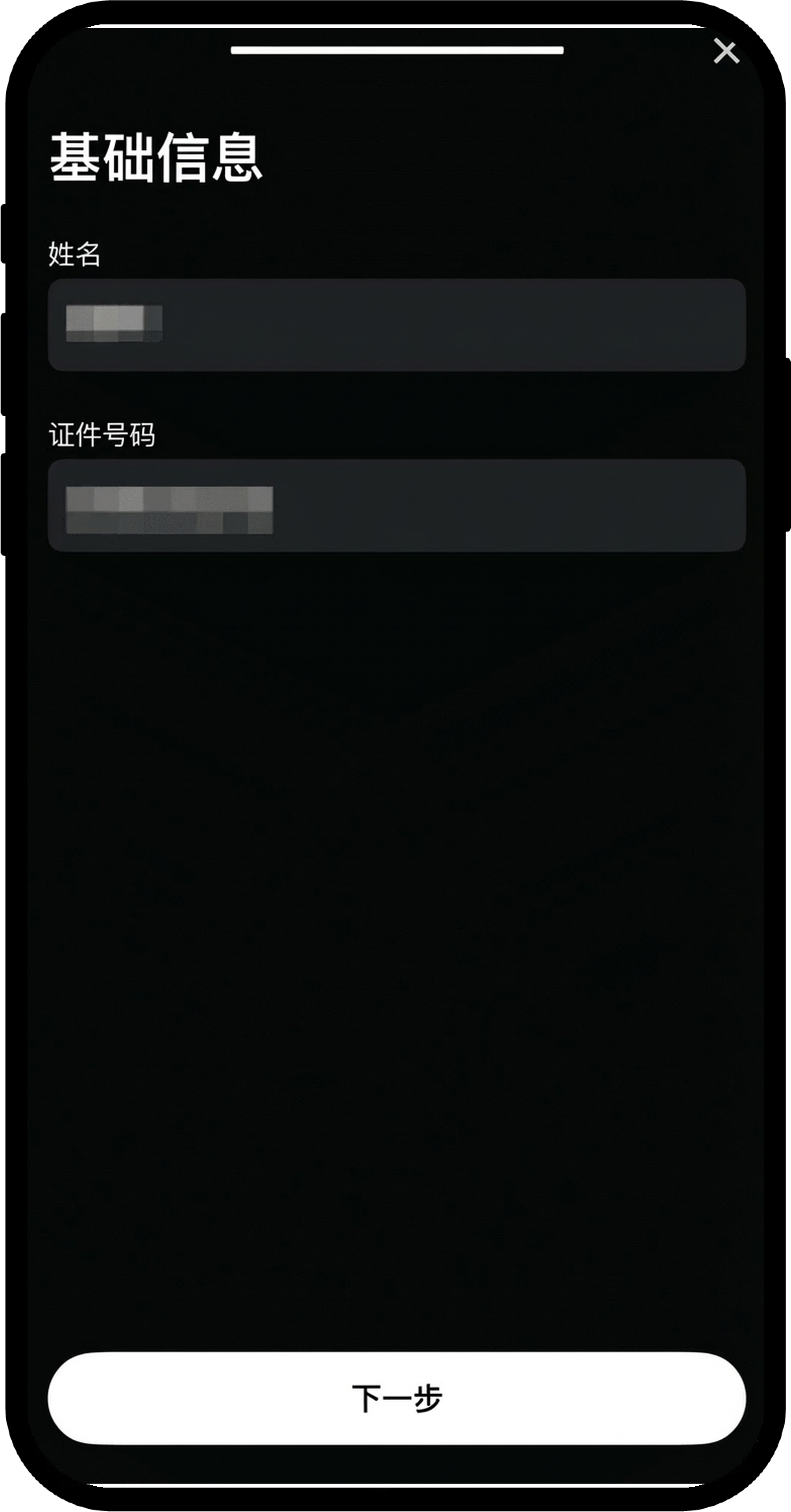
Image source: Gate Help Center
- (Optional) Once identity verification is approved, you can tap “Verify” next to Address Verification in the Verification Center, fill in your country of residence, province/city and address, and tap “Submit.”
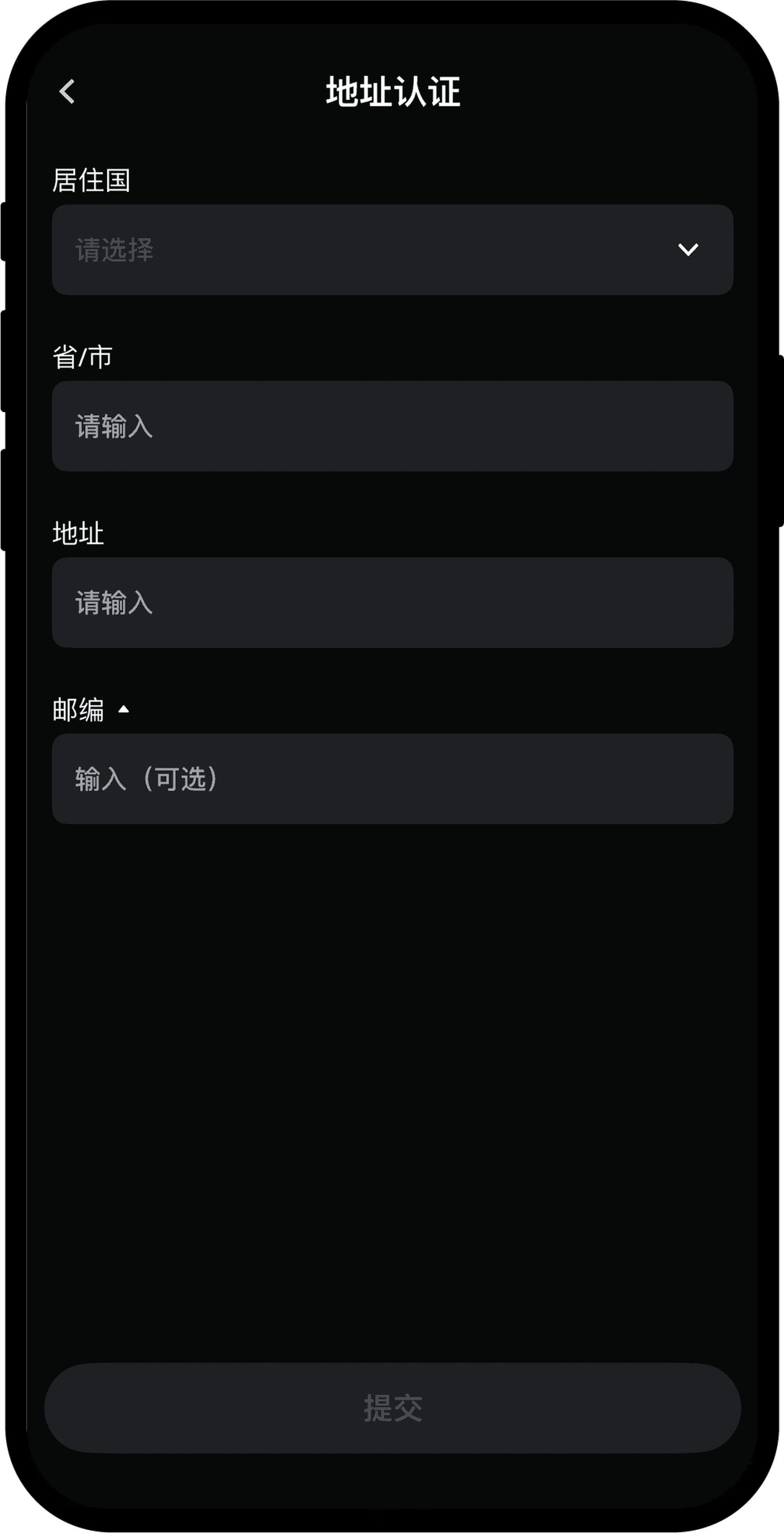
Image source: Gate Help Center
Gate web KYC steps
The web version follows the same order as the app. The differences are where you start, and that you can complete the ID and face steps in three ways:
- Log in to the Gate website, click your avatar in the top-right corner, select “Verification,” then click “Verify.”
- Choose your country of residence, nationality and ID type, then click “Next.” Gate reminds you to “make sure the information you enter exactly matches your ID.”
- Pick one of three methods: click “Use phone,” scan the QR code with your phone (or have the link sent to your email), and photograph your ID and face on the phone; or tick the box to accept the terms and click “Start” to do it directly with your computer’s camera; or, if face recognition isn’t available, click “Gesture Recognition” and upload your ID and gesture photos.
- Confirm your name and ID number, then click “Submit.”
- Once the review is approved, the identity verification page shows “Verified.” If you want a higher withdrawal limit, click “Verify” under Address Verification, fill in your address and click “Submit.”
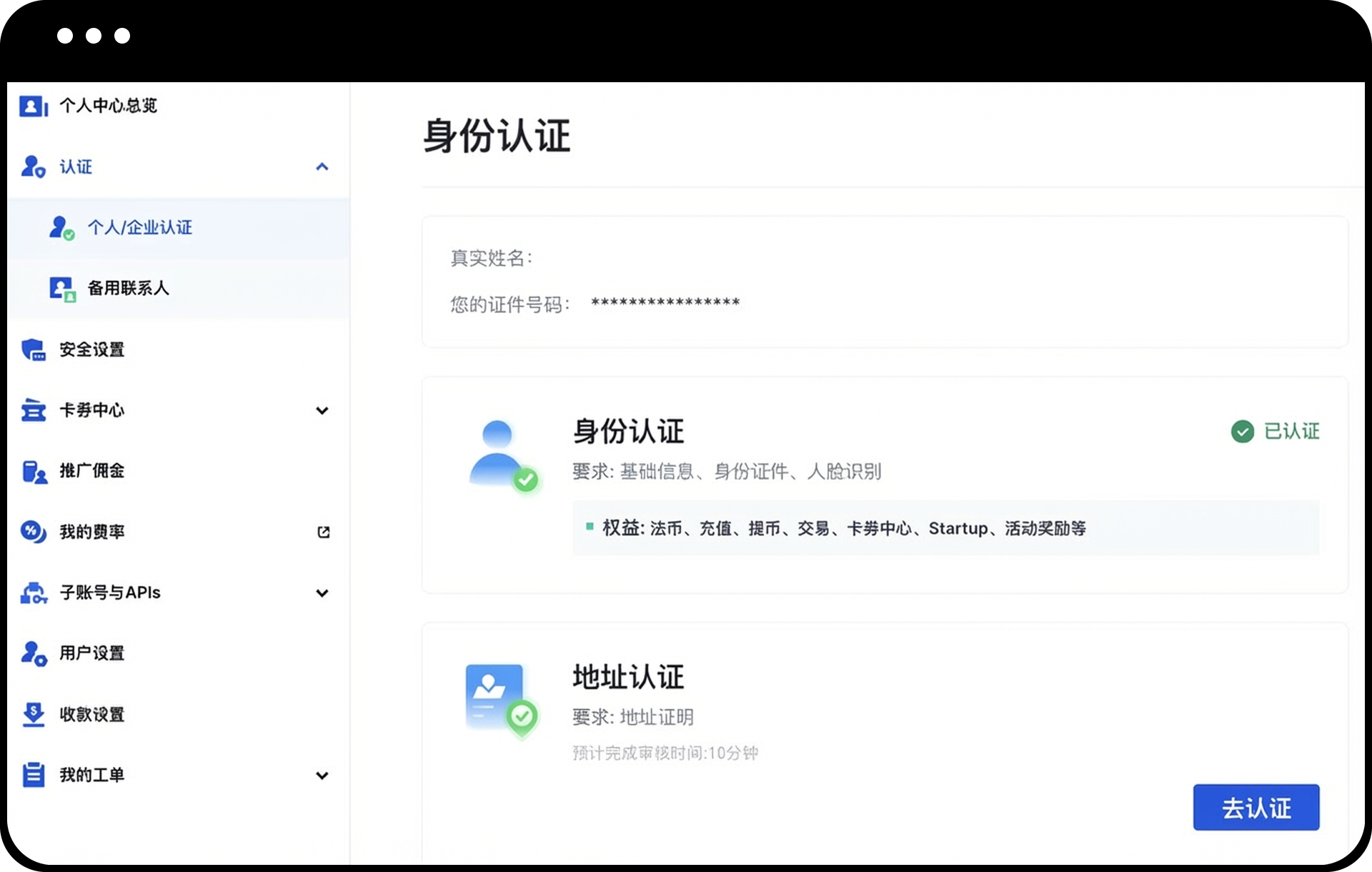
Image source: Gate Help Center
How long does KYC review take, and what if it’s rejected?
Gate’s official guides don’t agree on the review time. I list each version with its source below rather than picking one on Gate’s behalf:
| Source | Official wording |
|---|---|
| Web guide | Automatic review is usually completed within a few minutes of submitting and may take up to 1 business day, depending on photo clarity, completeness and the current review volume |
| App guide | Automatic review is usually completed within a few minutes of submitting; in special cases that need manual review, it may take 1-3 business days |
| KYC FAQ | KYC review usually takes 10 minutes to 12 hours; you can check the result on the KYC page later |
| Verification Center screen (official screenshot) | “It only takes 2-5 minutes to verify your account,” shown on the screen before you start |
| Address verification screen (older official screenshot) | Estimated review time: 10 minutes |
According to Gate, in most cases you’ll get a result within a few minutes; it’s sent by email and also shown on the page. If your application goes to manual review, the app guide says 1-3 business days; if you still have no result after that, contact customer support.
The official FAQ “Why was my KYC rejected?” lists conditions you can go through one by one:
- The ID wasn’t issued by a government, or it has expired.
- The photo isn’t of the physical ID but a photocopy, a scan, a photo of a screen, or an edited or filtered image.
- The name you entered doesn’t exactly match the name on the ID.
- The photo is blurry, incomplete or has glare, or doesn’t meet the JPG/PNG, 10KB to 4MB requirement.
- You get a “not the account holder” result: the system has judged that you and the ID may not match. Gate suggests retaking the photo in good light without a hat, mask or sunglasses, and switching to gesture recognition if it still fails.
The web guide states that you can resubmit after a failure: check the reason shown on the page, correct your details or upload new images, and submit again. The app guide says that if KYC keeps failing, you can submit a support ticket with clear photos of your ID. If an image won’t upload, the official FAQ says the network may be unstable; try a different connection, and if that doesn’t help, contact live chat support.
Once submitted, your verification details are hard to change: the app guide states that “identity verification information can’t be modified by yourself after submission.” Before submitting you can use “Edit Info”; after submitting, Gate’s guides don’t describe a self-service update process, so it can only be handled through official customer support or a support ticket.
What should Taiwan users know about KYC?
None of the official Gate KYC guides I checked mention rules specific to Taiwan. Which IDs you can use depends on the country and ID type you pick in the process, so go by what the page actually shows. From the official guides, I’ve pulled out a few points that matter more to users in Taiwan:
- Restricted regions: Gate’s “Restricted regions” page lists regions “including but not limited to” the US, mainland China, Singapore, Canada, Hong Kong, Japan, South Korea and the UK. Taiwan isn’t on that list. Enter your country of residence truthfully; if you live in a region on the list, you fall within the restrictions.
- Name format: your name must exactly match your ID, and special characters aren’t supported. If you use a passport, enter your English name as it’s spelled on the passport.
- ID photos: for both the national ID card and the driver’s license, you need to photograph the physical original; a photo of a screen or a scan won’t do.
For a comparison of restricted regions across exchanges, see exchange restricted countries.
Is KYC safe? How is your personal data used?
The official FAQ says Gate requires KYC to protect users’ assets, comply with industry regulations and reduce fraud, money laundering, extortion and other illegal activity. In the official screenshots, the ID and face flow is labeled “Powered by Jumio,” and the checkbox before you start says you agree that Jumio collects, processes and shares your personal information under its privacy policy, “which may include biometric data.” Judging from the screens, the ID and face recognition step is provided by a third-party service, Jumio. The app’s Verification Center also shows “Your information on Gate is encrypted.” The guides I checked don’t give more detail on how long the data is kept or what it’s used for.
When you actually go through it, I recommend sticking to two things. First, only verify on Gate’s official website or official app, and check the URL and the app’s source yourself; Gate also has an official verification channel where you can check whether a domain, email address or phone number really belongs to Gate. Second, never send photos of your ID or selfies to anyone who offers to “do your KYC for you” or “lift your restrictions”; Gate also explicitly prohibits using someone else’s ID or completing verification on someone else’s behalf. Common tactics are covered in crypto exchange scam types, and the signs of rebate-related scams in rebate scam warning signs.
What 3 things should you do first after KYC is approved?
Once your identity verification is approved, you can deposit. Before you deposit, I recommend getting these three things done first:
- Turn on two-factor authentication (2FA) or a passkey: link an authenticator app, and back up the authenticator key with a screenshot or by writing it down (Gate authenticator setup guide). Gate also has passkeys, currently used for login (Gate passkey introduction).
- Set an anti-phishing code: the path is Avatar → Security Settings → Advanced Security → Anti-Phishing Code. Once set, emails Gate sends you will include this code, and any email without it is a scam (Gate security settings page overview).
- Test with a small withdrawal first: the first time you withdraw to a new address, send a small amount, confirm it arrived, then send the larger amount; Gate states that choosing the wrong network results in lost assets that can’t be recovered (Gate on-chain deposit and withdrawal guide). Gate’s withdrawal address whitelist works as “verification-free addresses”: withdrawals to these addresses skip checks such as the fund password, so it only suits your own addresses (Gate withdrawal address whitelist).
These three steps protect your own account; the platform’s own security record, hacks and proof of reserves are covered in the Gate review.
FAQ
How long does Gate KYC take?
In most cases the automatic review is done within a few minutes, but Gate’s official wording varies: the web guide says up to 1 business day, the app guide says 1-3 business days for manual review, and the KYC FAQ says usually 10 minutes to 12 hours. You’re notified of the result by email, and it’s also shown on the KYC page.
Can I trade or withdraw on Gate without KYC?
No. The official FAQ states that identity verification is required before deposits and withdrawals, and the 2023 announcement says all customers must complete KYC before they start trading. On an unverified account, the Verification Center shows withdrawals, deposits, trading, payments and C2C as locked.
Can I use a family member’s or someone else’s ID for KYC?
No. The web guide states that you must use your own genuine, valid ID and “must not use someone else’s ID or complete verification on someone else’s behalf”; the app guide also says face recognition must be done by you, not with another person’s photo or video.
What should I do if Gate KYC fails?
First check the reason shown on the page, fix it and resubmit; Gate confirms you can submit again. Common causes are blurry or incomplete photos, details that don’t match the ID, and failed face recognition. If face recognition keeps failing, you can switch to gesture recognition, and if that still doesn’t work, submit a support ticket with clear photos of your ID.
Do I have to complete address verification on Gate?
Not necessarily. Gate states that address verification is optional and that completing it can raise your withdrawal limit; however, Gate may still ask you to complete it for compliance, a higher limit or a security review, and if asked, you may need to provide proof of address such as a utility bill or bank statement.
Can I change my name or ID details after passing KYC?
Not by yourself. The app guide states that identity verification information can’t be modified by yourself after submission, so check everything carefully with “Edit Info” before you submit. To correct it after submitting, Gate’s guides don’t describe a self-service process; you can only go through official customer support or submit a support ticket.
Can I do Gate KYC if I’m under 18?
No. The official FAQ states that “users under 18 are not currently supported for identity verification,” and without passing KYC you can’t deposit or withdraw.
Can I transfer my Gate KYC to a new account?
I found no official KYC transfer process. Gate’s identity verification FAQ doesn’t mention transfers (Gate identity verification FAQ), and Article 10.1(a) of its user agreement (updated 2026-07-22) prohibits using another person’s account or multiple accounts (Gate user agreement). If your account has an issue to sort out, ask Gate support first; for the limits on switching referrers, see how to switch your Gate referral code.
Sources
- Gate: How to complete identity verification on Gate (web) (page shows a publication date of 2020-02-16; screenshots are the 2026 version): the web screenshot in this article comes from this page.
- Gate: How to complete identity verification on Gate (app) (page shows a publication date of 2021-10-16; screenshots are the 2026 version): the app screenshots in this article come from this page.
- Gate: Identity verification (KYC) FAQ (page shows a publication date of 2020-04-06)
- Gate: Restricted regions (page shows a publication date of 2024-11-22)
- Gate announcement: Clarifications on Gate’s KYC Measures (2023-05-19, in English)
The pages above were checked on 2026-10-13. If you haven’t registered yet, the referral code and sign-up steps are in Gate referral code; fees are covered in Gate fees, and Gate’s reserves, security record and restricted regions are in the Gate review. Once you’ve registered, if you want to confirm your referral code is linked, see how to check if your referral code is linked.