


Updated Rules checked 2026-10-13
Ourbit’s KYC has only two states: “Unverified” and “Advanced Verification.” According to the official comparison table, an unverified account can withdraw 30 BTC every 24 hours, and completing Advanced Verification raises that to 200 BTC. Ourbit also says KYC unlocks the matching trading permissions and Earn events, and raises the per-transaction limits for buying crypto and withdrawing.
For Advanced Verification you need two things: a valid ID document of your own (national ID card, passport or driver’s license; the options depend on the issuing country) and a camera for face recognition. The check is run by a third party, Sumsub. The official review time is “feedback within 48 hours,” and the result is sent by email.
Key points: Ourbit’s KYC has two states, Unverified and Advanced Verification. An unverified account can withdraw 30 BTC per 24 hours; after Advanced Verification the limit is 200 BTC per 24 hours. Advanced Verification consists of basic verification information plus face recognition, and both the ID photo and the selfie are done on the third-party Sumsub page. On the website, go to “Profile” in the top-right corner → “Identity Verification” → “Verify”; in the app, tap “Profile” in the top-left corner of the home screen → account info → “Identity Verification” → “Verify”. Ourbit’s official review time is a result within 48 hours, sent by email. In the official screenshots the Identity Verification page shows the “remaining KYC verification attempts,” which is 5 for the sample account, so it’s best to have your ID ready and good lighting before you submit.
The information below was checked against Ourbit’s official documentation on 2026-10-13 (fact-check date). The screenshots come from the official help center and are provided for reference.
Not signed up yet? Enter the referral code before KYC
You can only do KYC after you register, and the referral code is entered when you sign up. If you don’t have an account yet, register first by following the steps in the Ourbit referral code guide, then come back here for identity verification.
Our Ourbit referral code is KEVINWU; just enter it when you sign up.
Ourbit spot trading is currently fee-free (0% for both Maker and Taker), so there is no spot rebate; referral rebates come only from futures and DEX trades. For the rate details, see Ourbit fees. If you’ve already registered without a referral code, Ourbit lets accounts that aren’t yet bound to a referrer add one on the referral page, and the binding can’t be changed afterward; see how to switch your Ourbit referral code for the steps. How each exchange handles adding a code later is compared in can you add a referral code after signing up.
What are Ourbit’s KYC levels, and what does each unlock?
Ourbit’s KYC guide lists two states. Here they are, following the original table:
| Verification status | What you submit | Withdrawal limit (24 hours) | Other differences listed officially |
|---|---|---|---|
| Unverified | Nothing (no KYC done) | 30 BTC | Not listed in the official guide |
| Advanced Verification | Basic verification information, face recognition | 200 BTC | Unlocks the matching trading permissions and Earn events; raises per-transaction limits for buying crypto and withdrawing; adds event trial-fund benefits |
Source: Ourbit, “How to complete KYC on Ourbit?”. The official guide doesn’t spell out which features (for example futures, buying crypto with fiat, or Earn) require KYC first; it only says that different KYC levels unlock the matching permissions. It also gives no figure for how much the per-transaction limits for buying crypto and withdrawing go up. Futures use leverage, and if the price moves against you, your position may be forcibly liquidated.
Is there a risk in skipping KYC? Section 11 of Ourbit’s user agreement (English version) says that if an account hasn’t completed the identity verification process, Ourbit has the right to stop providing account services without notice, and may also suspend, close or delete the account. This is a right reserved in the terms; Ourbit’s KYC guide doesn’t set a deadline.
What do you need for Ourbit KYC?
- A valid ID document of your own: the example on the Sumsub screen (with Hong Kong chosen as the issuing country) lists four types, ID card, passport, residence permit and driver’s license, while the app’s example screen shows three: driver’s license, ID card and passport. What you can actually choose depends on what the screen shows for the issuing country or region you select.
- Document requirements: the official guide says to use the original of your own ID card, driver’s license or passport, and the document must be a citizen ID from a country that isn’t restricted from trading. The official web guide only mentions photographing the front, while the app guide says to photograph the front and back. The photo must be clear, with all four corners of the document in the frame.
- File formats: the current Sumsub upload screen says JPG, PNG, HEIC, WEBP or PDF, up to 50 MB. Ourbit’s older guide from 2024 says JPG, JPEG or PNG, under 5MB. The two don’t match, so go by what the upload screen says at the time; if the upload fails, try converting to JPG or PNG and shrinking the file below 5MB, as the older guide says.
- Face recognition: you need to turn on your camera. The screen tells you to “find a well-lit place,” “make sure your face is inside the frame” and “please don’t wear a hat, glasses or a mask,” and also states that the system captures your face and background during the check. The official guide warns that poor lighting may cause verification to fail.
Ourbit KYC steps on the website
The screenshots in the official guide show the Traditional Chinese interface. The Ourbit website uses a dark layout, and the Sumsub verification page has a white background. Button names follow the official guide’s wording.
- Log in to the Ourbit website, click “Profile” (the person icon) in the top-right corner → “Identity Verification”, and click “Verify” on the “Advanced Verification” row.
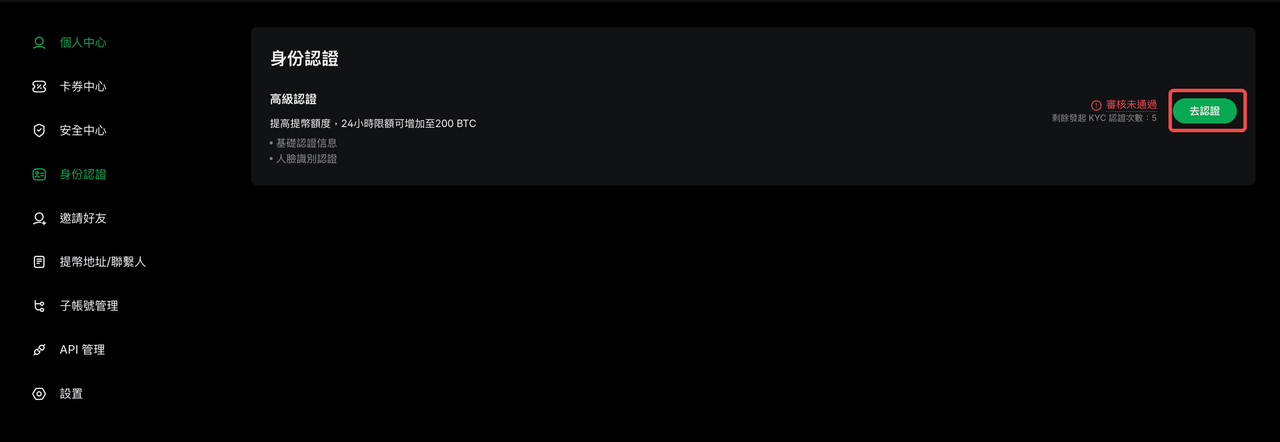
Image source: Ourbit Help Center
- In the “Advanced Verification” window, choose the document nationality (the country/region that issued your ID) and the document type, then click “Confirm”.
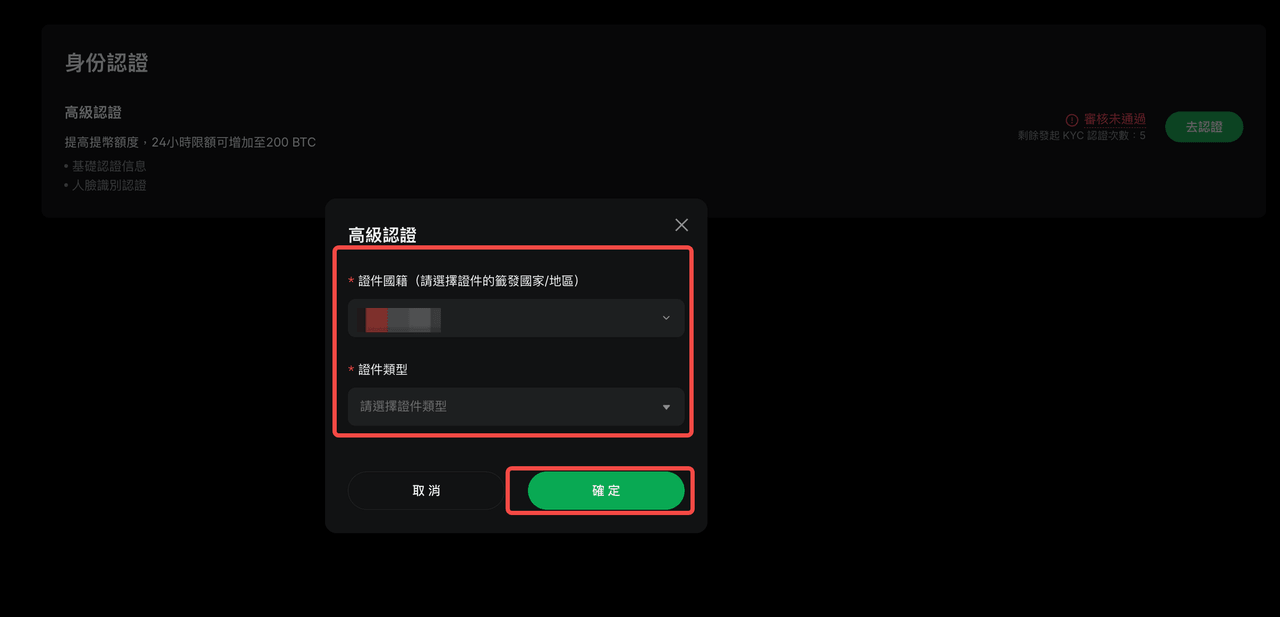
Image source: Ourbit Help Center
- On the third-party verification page (Sumsub), click “Start verification”. You’ll be asked to choose the issuing country and document type again; after choosing, click “Continue”.
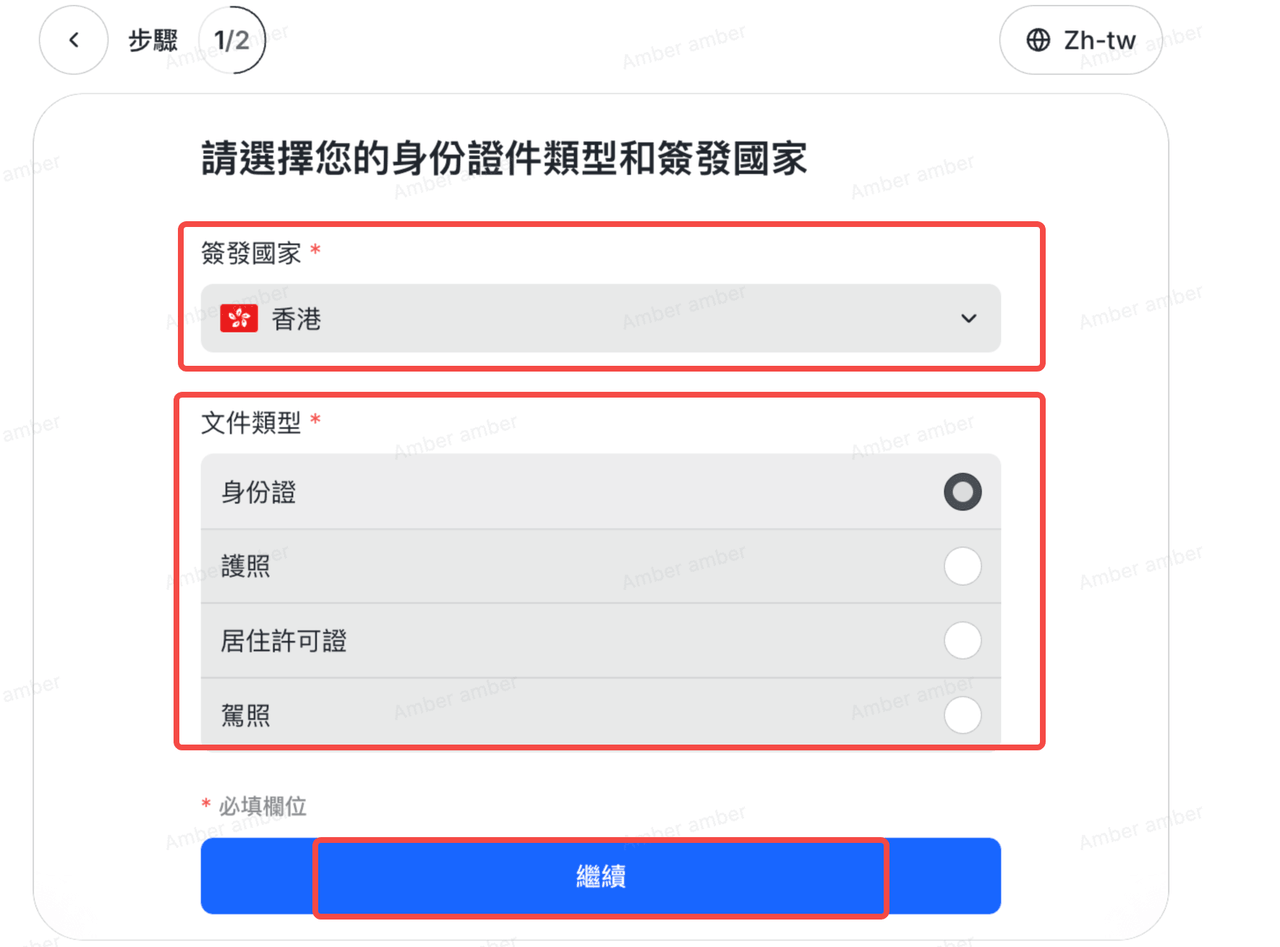
Image source: Ourbit Help Center
- Take and upload a photo of the front of your ID. Once you’ve checked that it’s clear and all four corners are visible, click “Upload document”.
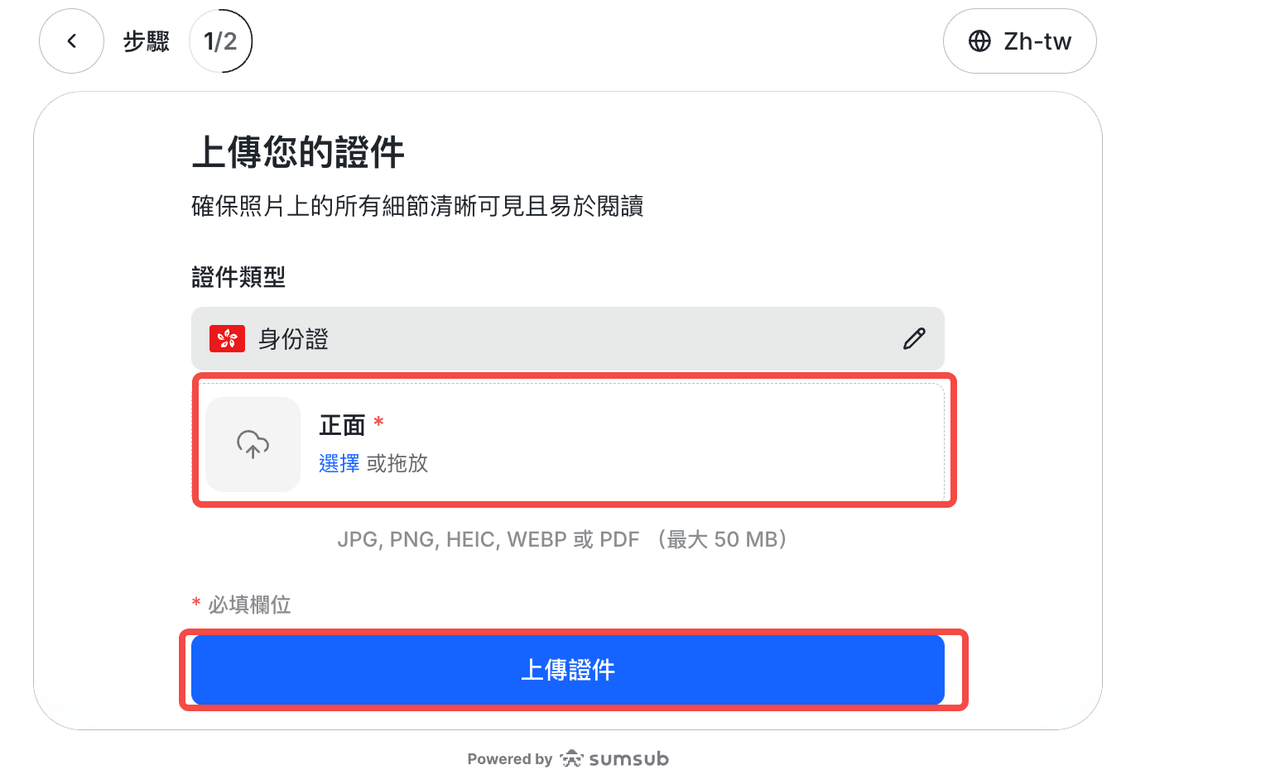
Image source: Ourbit Help Center
- Click “Continue” and complete face recognition as the page instructs. Pick a well-lit spot and keep your face inside the frame.
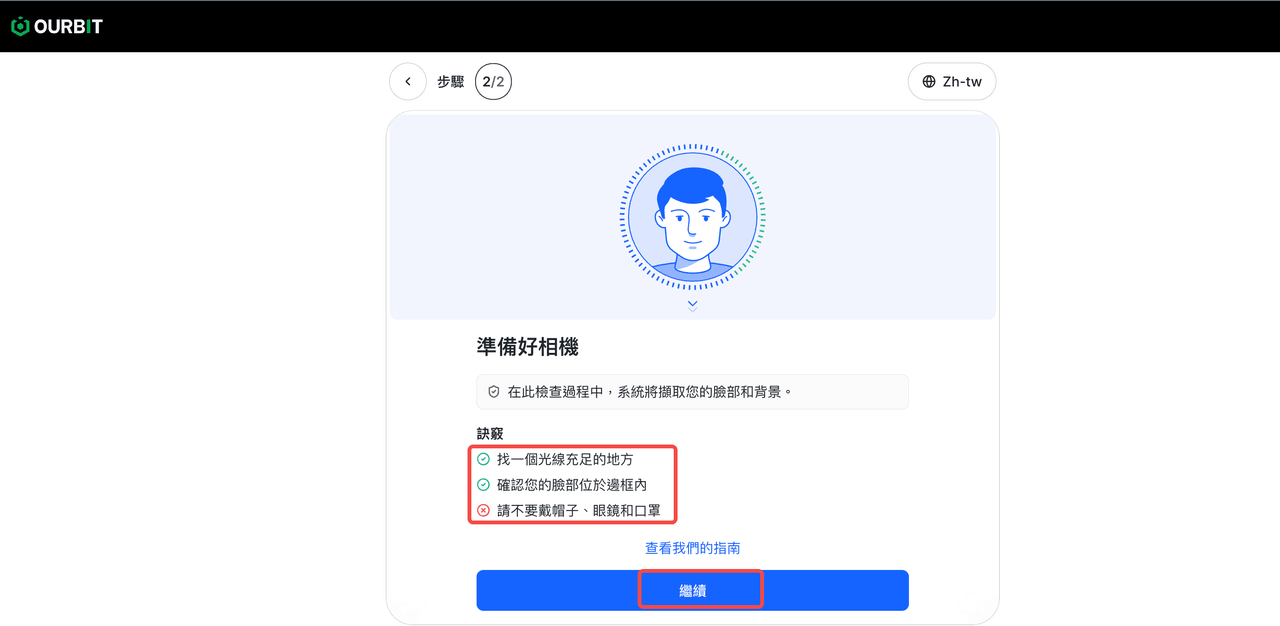
Image source: Ourbit Help Center
- After you submit, you’ll see “Submitted successfully” with an estimated review time of 48 hours. The result is sent by email, and you can also click “View review result”.
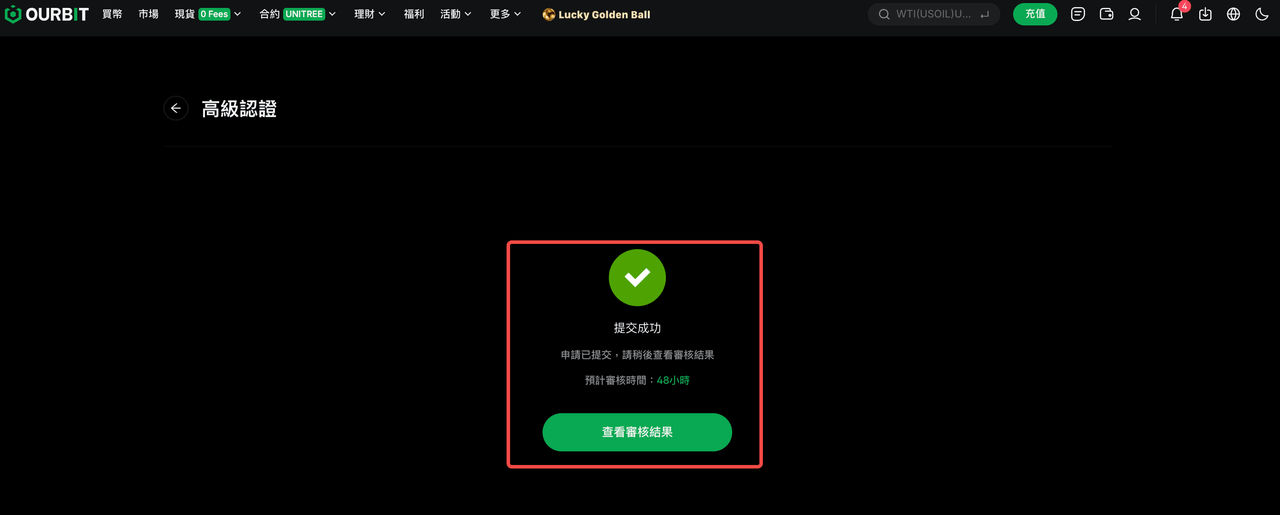
Image source: Ourbit Help Center
Ourbit KYC steps in the app
The app follows roughly the same order as the website, but the entry point is different, and you photograph both the front and back of your ID:
- Log in to the app, tap “Profile” (your avatar) in the top-left corner of the home screen to open your account info (the “Me” page), then tap “Identity Verification” → “Verify”, and tap “Verify” once more on the “Advanced Verification” page.
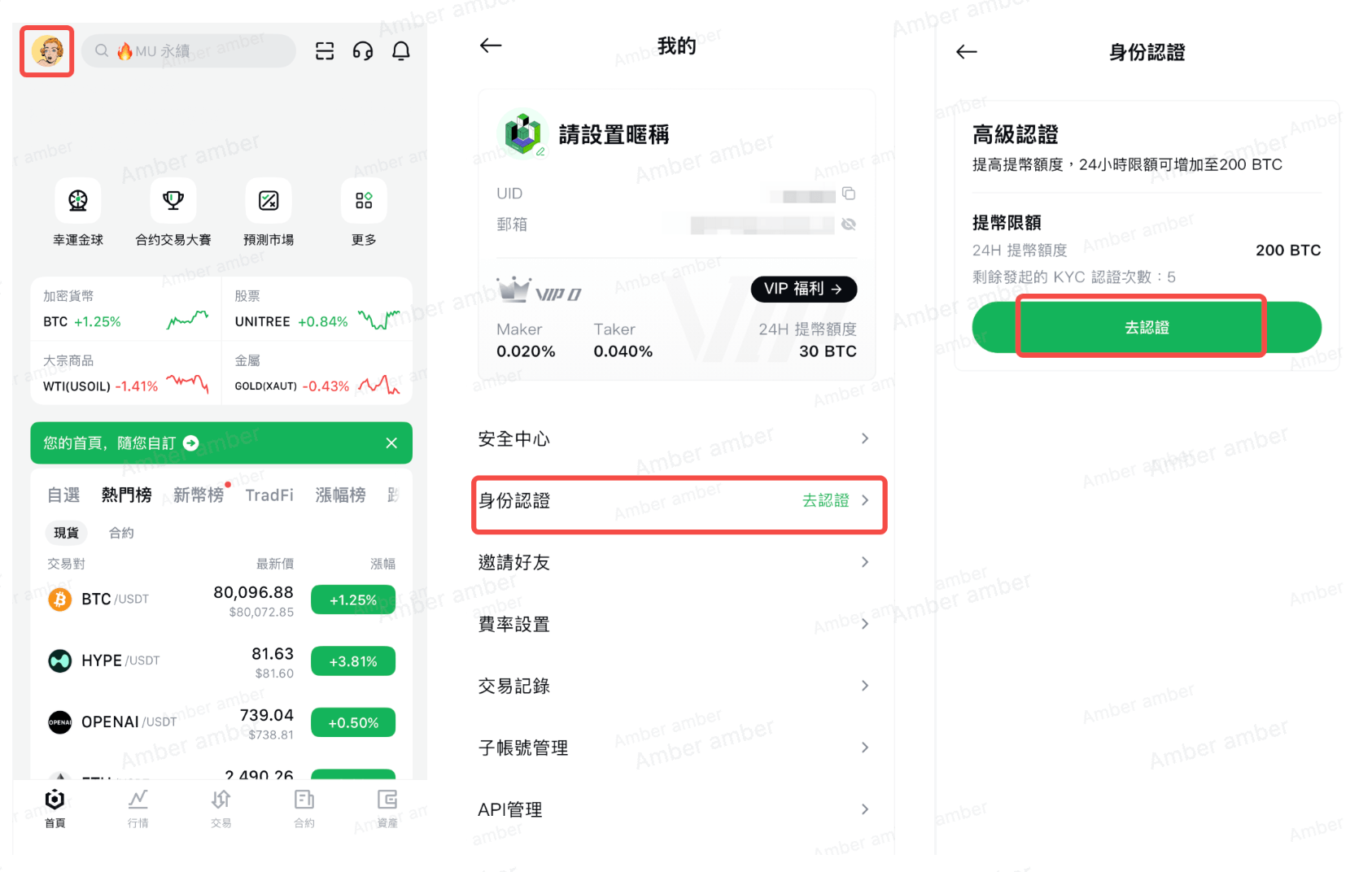
Image source: Ourbit Help Center
- Use the search box to find and select the country or region that issued your ID.
- Choose the document type (for example, ID card) and tap “Continue” at the bottom.
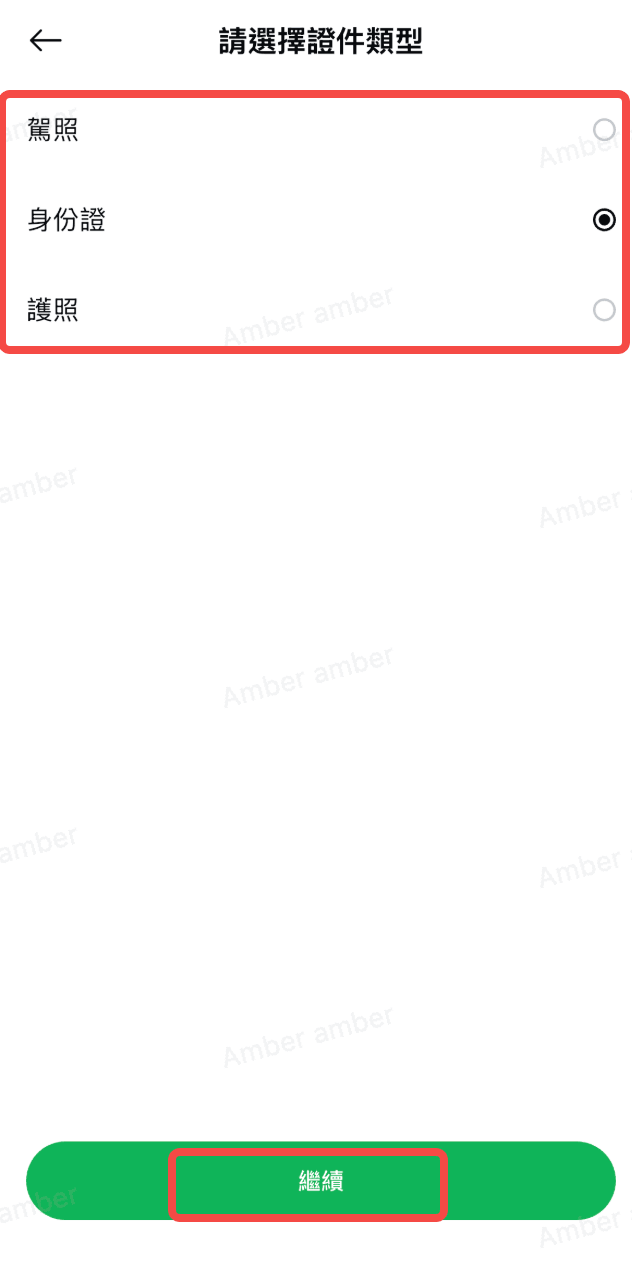
Image source: Ourbit Help Center
- The “Let’s get you verified” page first explains that two steps follow, the identity document and a selfie. Tap “Continue”.
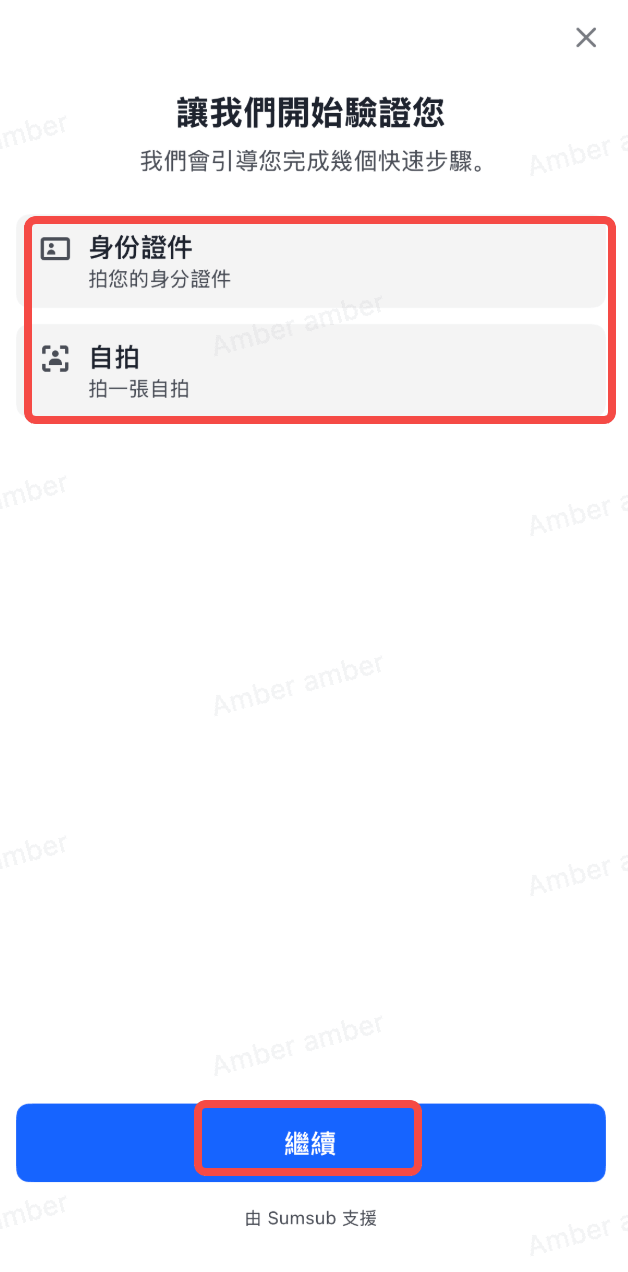
Image source: Ourbit Help Center
- Following the on-screen prompts, photograph the front and back of your ID and submit, then take a selfie and submit. That completes your Advanced Verification application. As on the website, the result comes within 48 hours by email.
How long does KYC review take, and what if you’re rejected?
Ourbit’s official wording is “you will receive feedback on the verification result within 48 hours,” and the screen after you submit on the website also says “Estimated review time: 48 hours.” The result is sent by email. The official guide gives no faster estimate, and doesn’t say how much longer it may take in special cases.
The official guide doesn’t list rejection reasons. The official screenshots show that if you don’t pass, the Identity Verification page says “Review failed,” and you can click “Verify” again to reapply, with the number of remaining attempts shown next to it (5 for the sample account). Ourbit doesn’t say what happens once you’ve used up your attempts, so before resubmitting, check the points below:
- The document isn’t your own original, or isn’t a citizen ID from a country that isn’t restricted from trading.
- The photo isn’t clear, or not all four corners of the document are in the frame.
- The lighting was too poor during face recognition, or you wore a hat, glasses or a mask.
- The issuing country and document type you chose on the website or app don’t match the document you actually uploaded.
If your photo won’t upload or you get an error message, Ourbit’s “Unable to upload photos during identity verification” guide suggests: make sure the file is JPG, JPEG or PNG and under 5MB; wait a while and try again; clear your browser and device cache; submit from the other platform (website or app); switch to a different browser; and update the app to the latest version. If it still doesn’t work, send a screenshot of the error to online customer support.
After you pass, if your ID expires or you change your name, Ourbit’s help center currently has no article on how to update your identity details. I couldn’t find a self-service update process, so if you need to, your only option is to contact online customer support.
What should Taiwan users know about KYC?
The official Ourbit KYC guide I checked has no rules specific to Taiwan. Which documents you can use depends on the issuing country or region you choose during the process, so go by the options on your screen. Two points are more relevant to Taiwan users:
- Restricted regions: the English user agreement on Ourbit’s terms page lists prohibited countries, including the United States, China, Singapore, North Korea, Cuba, Iran, Sudan, France, Germany, the Netherlands, Spain, Italy, Austria, Portugal, Ontario (Canada), and the Crimea, Donetsk and Luhansk regions of Ukraine, and Ourbit may add others. Taiwan isn’t on the list. The official guide also requires the document to be a citizen ID from a country that isn’t restricted from trading.
- Interface language: the official screenshots show the Traditional Chinese interface, and you can switch languages in the top-right corner of the Sumsub page (the screenshot shows Zh-tw). In the app, you pick your country by searching a list that shows country names in both Chinese and English.
A comparison of each exchange’s restricted countries is in exchange restricted countries.
Is KYC safe? How is your personal data used?
Ourbit’s KYC is run by a third party, Sumsub; the bottom of the verification page says “Powered by sumsub” (the app says “Supported by Sumsub”). The privacy policy (in English) on Ourbit’s terms page says two things: third-party identity verification providers may also collect your personal data when providing identity verification or fraud prevention services; and where local law allows or you consent, Ourbit may collect biometric data, such as facial scan data taken from a selfie or video, to compare against the photo on your government ID. The tips page before face recognition also notes that your face and background are captured during the check.
My advice comes down to two things. First, verify only on the official Ourbit website or in the official app, and check the URL and where the app came from yourself. Second, never send your ID photos or selfie to anyone who offers to “do your KYC for you” or “raise your limits.” Common tactics are covered in crypto exchange scam types, and the signs of rebate-related scams are in rebate scam warning signs.
What 3 things should you do first after KYC is approved?
Once your identity verification is approved, you can deposit. Before you deposit, I recommend getting these three things done first:
- Turn on two-factor authentication (2FA): link Google Authenticator in the “Security Center” and back up the key; if you reset Google Authenticator later, withdrawals are locked for 24 hours (Ourbit: link Google Authenticator). I couldn’t find a passkey guide in Ourbit’s help center.
- Set an anti-phishing code: set it under “Personal Center → Security Center → Anti-Phishing Code,” and from then on, emails Ourbit sends you will include this code; treat any email without it with caution (Ourbit: guarding against common scams).
- Test with a small withdrawal first: the first time you withdraw to a new address, send a small amount, confirm it arrived, then send the larger amount (Ourbit withdrawal guide). Ourbit’s withdrawal security check asks you to enter the last 4 characters of the withdrawal address (Ourbit withdrawal security guide).
These three steps protect your own account; the platform’s own security record, hacks and proof of reserves are covered in the Ourbit review.
FAQ
How long does Ourbit KYC take?
Ourbit says you’ll get a result within 48 hours, by email. The screen after you submit on the website also shows “Estimated review time: 48 hours.”
Can I trade or withdraw on Ourbit without KYC?
The official comparison table shows that an unverified account can withdraw 30 BTC every 24 hours, and 200 BTC after Advanced Verification. The official guide doesn’t list which trading features require KYC; the user agreement reserves the right to stop service if identity verification isn’t completed.
Can I use a family member’s or someone else’s ID for KYC?
No. The official guide states that the valid document must be the original of your own ID card, driver’s license or passport. The user agreement also says Ourbit can suspend or terminate service if someone registers using another person’s identity information without authorization, and that accounts can’t be lent, rented or transferred to a third party.
What should I do if Ourbit KYC fails?
Go back to the Identity Verification page and click “Verify” to reapply, but the number of attempts is limited (5 in the official screenshot’s example), so check your document, photos and lighting before resubmitting. If your photo won’t upload, follow the official advice: check the format and file size, clear your cache, switch browsers or use the app instead. If it still fails, send a screenshot of the error to online customer support.
How many Ourbit accounts can one person open?
The user agreement says the user account created at registration is the only account the user uses to log in to and use Ourbit’s services. Ourbit also reserves the right to identify linked accounts through shared devices, IP addresses, behavior patterns and similar means, and to treat them as jointly controlled accounts. The interface has a “Sub-account management” entry, but Ourbit’s KYC guide doesn’t say how many sub-accounts you can have.
Can I transfer my Ourbit KYC to a new account?
I found no official rule on KYC transfers, and the help center doesn’t mention moving identity verification to another account. Ourbit’s user agreement states that the account created at registration is the only account a user uses for its services, that Ourbit identifies linked accounts through devices, IP addresses and similar means, and that if a user registers again, directly or indirectly, Ourbit has the right to close the account (Ourbit user agreement). For the limits on switching referrers, see how to switch your Ourbit referral code.
Can I change my name or ID details after passing KYC?
Ourbit’s help center has no article on updating your identity details yourself, and I couldn’t find a process for changing them. If your ID expires or your details change, contact Ourbit’s online customer support.
Sources
- Ourbit: How to complete KYC on Ourbit? (published 2026-08-25): all the screenshots in this article come from this page.
- Ourbit: Unable to upload photos during identity verification (published 2024-04-09)
- Ourbit: Terms and user agreement framework (the user agreement and privacy policy are in English; the page shows no date)
- Ourbit: Zero Trading Fees on All Spot Pairs! (English fee announcement; the basis for 0% spot Maker and Taker fees)
The pages above were checked on 2026-10-13. If you haven’t signed up yet, the referral code and sign-up steps are in Ourbit referral code; rates are covered in Ourbit fees, and reserves, the safety record and restricted regions are in Ourbit review. To confirm your referral code was bound after signing up, see how to check whether your referral code is bound.