


Updated Rules checked 2026-10-13
A Pionex account needs KYC before you can use it: without verification (LV.0) you can’t trade, deposit crypto or withdraw. Level 1 (LV.1) only asks for your country of residence and legal name. Level 2 (LV.2) requires a government-issued ID and a face scan, and it unlocks fiat deposits and higher withdrawal limits.
Pionex’s stated review time is within 1 hour in normal cases and 1–3 business days in complex cases. You can apply for LV.2 directly without doing LV.1 first.
Key points: in Pionex’s official level table, unverified accounts can’t trade or deposit crypto and have a withdrawal limit of 0; Level 1 allows trading and crypto deposits, while fiat deposits require Level 2. Level 1 only needs your country or region of residence and a legal name that matches your ID. Level 2 needs a valid government-issued ID (passport, national ID card, driver’s license or residence permit) plus a face scan. Pionex’s official KYC review time is usually within 1 hour, or 1–3 business days in complex cases. Level 1 withdrawal limits are 20,000 USD per 24 hours and 100,000 USD per 30 days. For the Level 2 24-hour limit, an official screenshot from 2026-08 shows 2,000,000 USD, the 2021 upgrade announcement says 1,000,000 USD, and the beginner’s guide says to go by what the page currently shows. Each KYC identity can verify only one Pionex account, and identity checks are handled by the third-party provider Sumsub.
The information below was checked against Pionex’s official documentation on 2026-10-13 (date of fact-check). The screenshots come from the official Help Center and are shared here for reference.
Not signed up yet? Enter the referral code before KYC
KYC comes after sign-up, but the referral code goes in during sign-up. For the sign-up process and the referral code, see Pionex referral code. This article only covers identity verification after your account is created.
Enter referral code KEVINWU when you sign up to get Pionex’s fee reduction, paid back in USDT to your main account after you trade.
If you forgot to enter it, you can still add it, but there’s a deadline. Pionex’s rule is that you can add a code within 14 days of signing up; if you’ve already placed a manual or bot trade order, the window shrinks to 3 days after sign-up, and once bound the code can’t be changed or removed (Pionex: adding an invitation code later). The condition Pionex draws is whether you’ve placed a trade order; KYC isn’t mentioned. So you can do things in this order: sign up, confirm the referral code is bound, complete KYC, and only then place your first order. For the steps, see add a Pionex referral code after signing up; for how exchanges compare, see can you add a referral code after signing up.
What are Pionex’s KYC levels, and what does each unlock?
Pionex has three states: unverified (LV.0), Level 1 (LV.1, KYC1) and Level 2 (LV.2, KYC2). Here’s what each one allows:
| Feature | Unverified LV.0 | Level 1 LV.1 | Level 2 LV.2 |
|---|---|---|---|
| Trading | No | Yes | Yes |
| Crypto deposits | No | Yes | Yes |
| Fiat deposits | No | No | Yes |
| What you provide | — | Country or region of residence, legal name matching your ID | Valid government-issued ID, face scan |
Withdrawal limits are where three official sources disagree. I’ve put them side by side rather than picking a number on Pionex’s behalf:
| Official source | LV.1 24 hours | LV.1 30 days | LV.2 24 hours | LV.2 30 days |
|---|---|---|---|---|
| Interface screenshot in How to complete KYC verification (2026-08) | 20,000 USD | 100,000 USD | 2,000,000 USD | Screenshot shows “-” |
| Identity verification upgrade announcement (published 2021) | 20,000 USD (daily) | 100,000 USD | 1,000,000 USD (daily) | 30,000,000 USD |
| Beginner’s guide to identity verification (updated 2026-10-13) | Go by what the page currently shows | |||
The two sources that list numbers agree on LV.1 and differ on LV.2. The beginner’s guide only says to go by the page. You can check your own account’s limits under “Real-Name Verification” via the avatar in the top-left of the app’s home screen, or on the KYC page of the website.
Both limits are rolling: they count from the time of your most recent withdrawal and don’t reset at a fixed time. Pionex’s example is a KYC1 user who withdraws 20,000 USDT at 08:00 UTC; the next withdrawal is possible at 08:00 UTC the following day. Do the math: if you withdraw the full 20,000 USD every day at LV.1, you hit the 30-day 100,000 USD cap on day 5 (5 × 20,000 = 100,000). If you need to withdraw more than that in a month, you’ll need LV.2.
Also, even after completing LV.1, Pionex’s risk controls may ask you to complete LV.2 before a withdrawal. Pionex says this isn’t a penalty and doesn’t mean anything is wrong with your account. Once you’ve done LV.2, you can’t go back to LV.1.
What do you need for Pionex KYC?
LV.1 doesn’t require any uploads. You choose a country, enter your name and tick four declarations: you’re not from mainland China or a sanctioned country or region, you’re not subject to any sanctions, you have no serious criminal record, and you’re at least 18. For LV.2 you’ll need the following (beginner’s guide to identity verification):
- ID type: one of passport, national ID card (with photo), driver’s license (with photo) or residence permit. Voter cards, military IDs and birth certificates are not currently accepted.
- You must photograph the original physical document; scans, printouts and screenshots aren’t accepted. The interface also states that photocopies, black-and-white photos and badly worn documents aren’t supported.
- The ID must be valid for at least 6 more months.
- File formats: JPG, PNG, HEIC, WEBP or PDF, up to 50 MB per file.
- Face scan (liveness check): it needs a live scan of a real face; pointing the camera at a photo, a screen or a printout will fail.
- Proof of address is only needed in some cases, such as mainland Chinese users living abroad. You can use a bank statement or a water, electricity, gas, internet or landline bill from the last 6 months.
Only users aged 18 or over are accepted, and the same ID can’t have been used to verify another Pionex account. If you hold more than one nationality, Pionex recommends using an ID from the country most closely tied to your personal identity.
Pionex KYC steps on the website
The screenshots in the official guide show the Traditional Chinese interface; only the region-selection screen in the reapplication screenshot is in English. In a few places the button names in the guide’s text differ from the screenshots. The steps below follow the screenshot labels, with the guide’s wording in parentheses.
- Log in to pionex.com, click your avatar in the top-right corner, choose “Identity Verification (KYC)” and then click “Get Verified” (the guide’s text calls these the avatar icon, KYC and Verify).
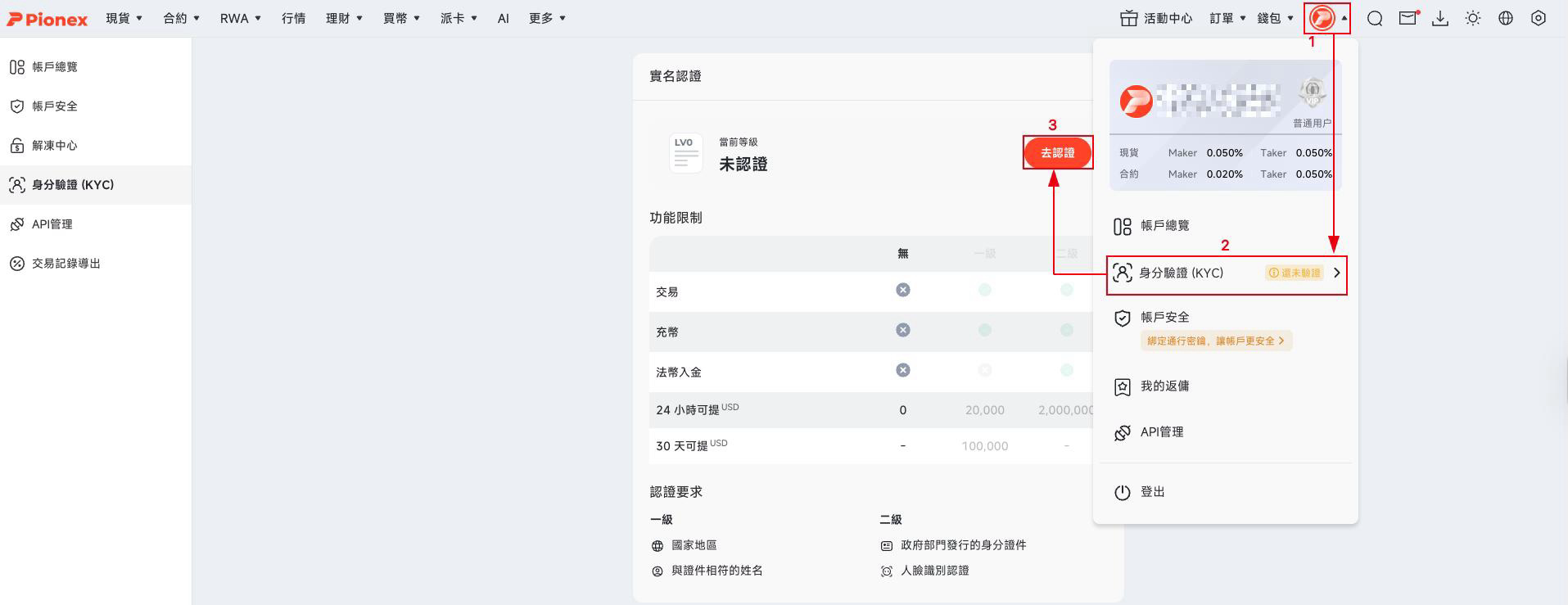
Image source: Pionex Help Center
- Level 1: choose the country or region you currently live in, enter your legal name (no special characters or numbers), read each declaration, tick only the ones that apply to you, and click “Submit”. Your name can’t be changed after you submit it.
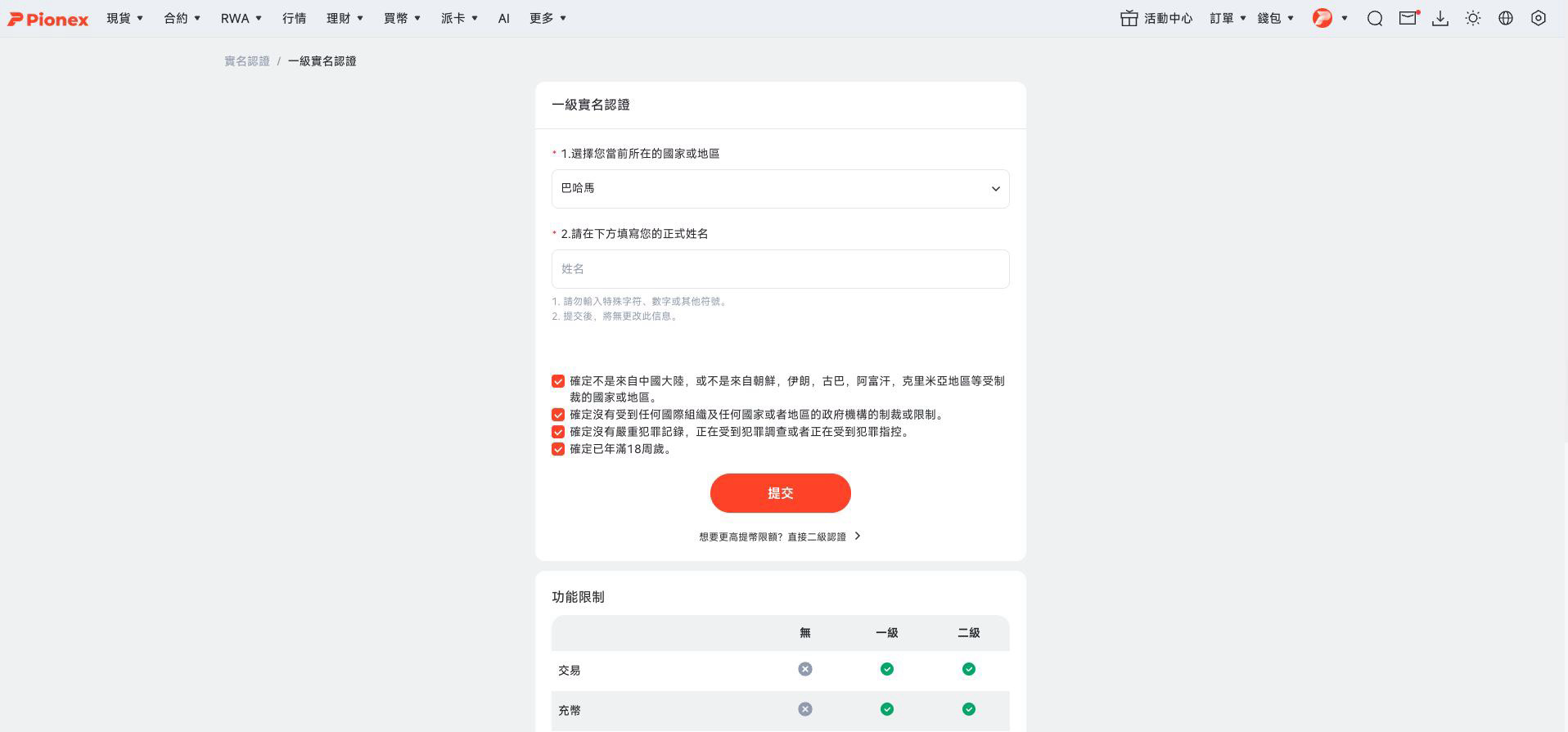
Image source: Pionex Help Center
- Level 2: go back to the KYC page and click “Get Verified” (the guide’s text says “Upgrade”). Read the requirements in the “Identity verification notice”, then click “Start”.
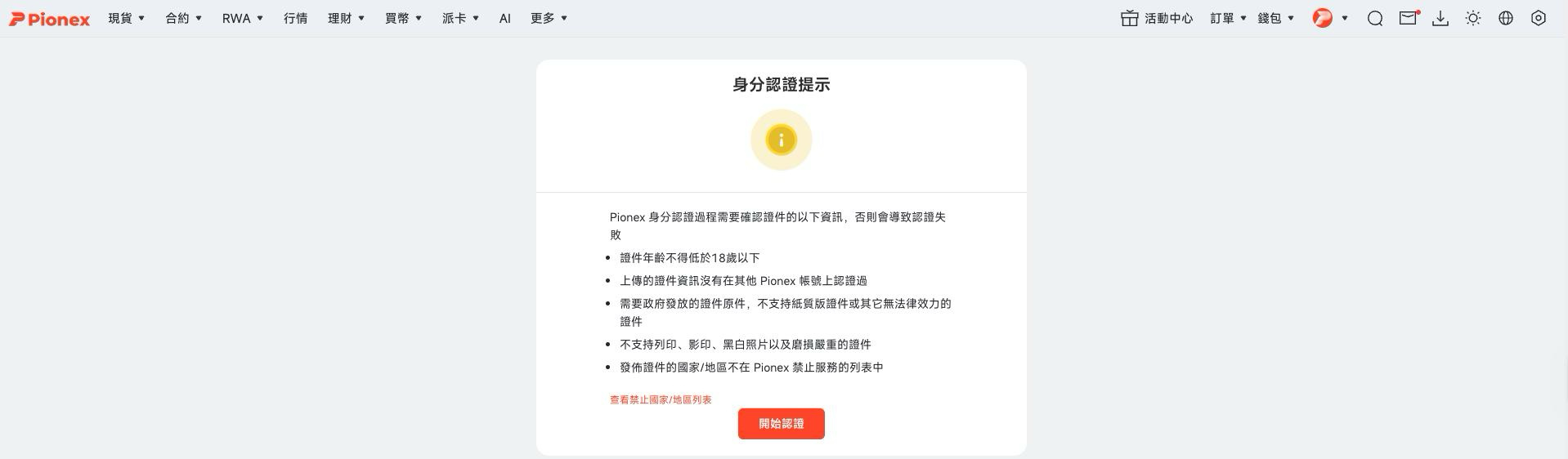
Image source: Pionex Help Center
- You’ll land on Sumsub’s verification screen, which has two steps: provide an ID document and complete a Liveness check. To do it on your computer, click “Start verification” (the guide’s text says “Continue on this device”); you can also click “Continue on phone”.
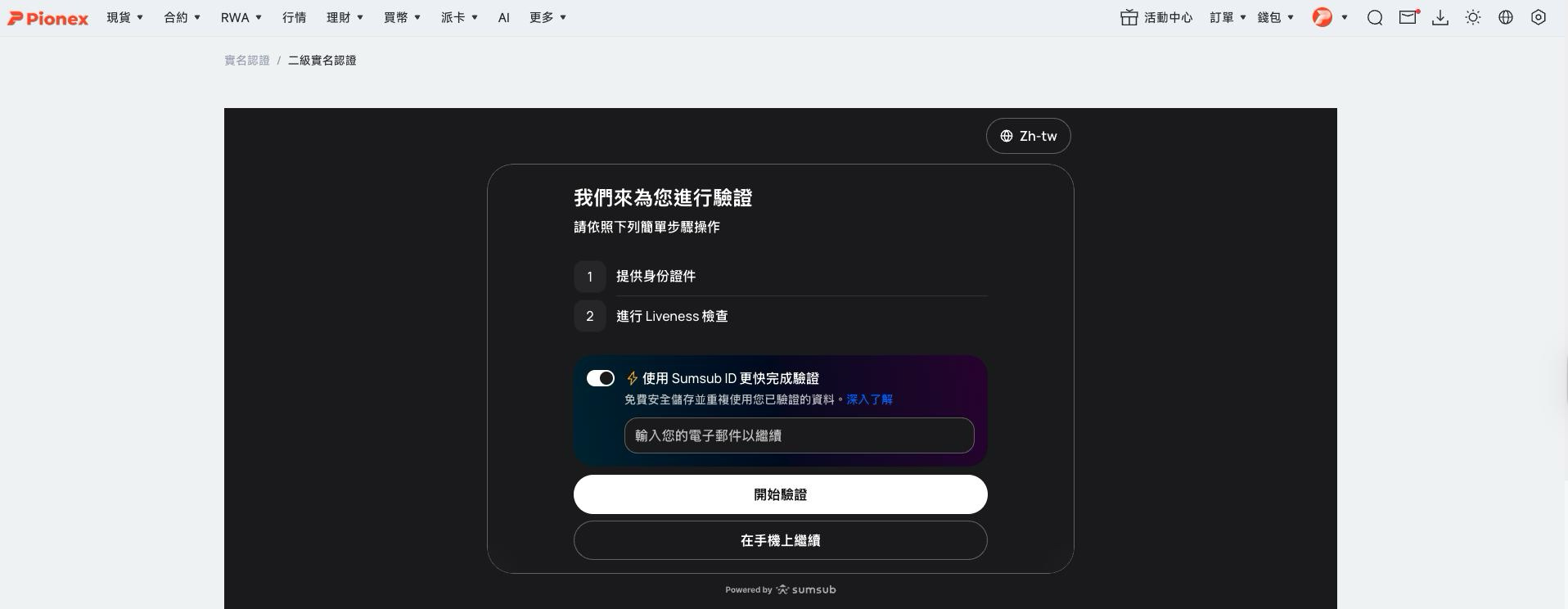
Image source: Pionex Help Center
- Choose the issuing country and document type, then click “Continue” (the guide’s text says “Next”). The official screenshot selects Taiwan, where the options are driver’s license, ID card, passport and residence permit.
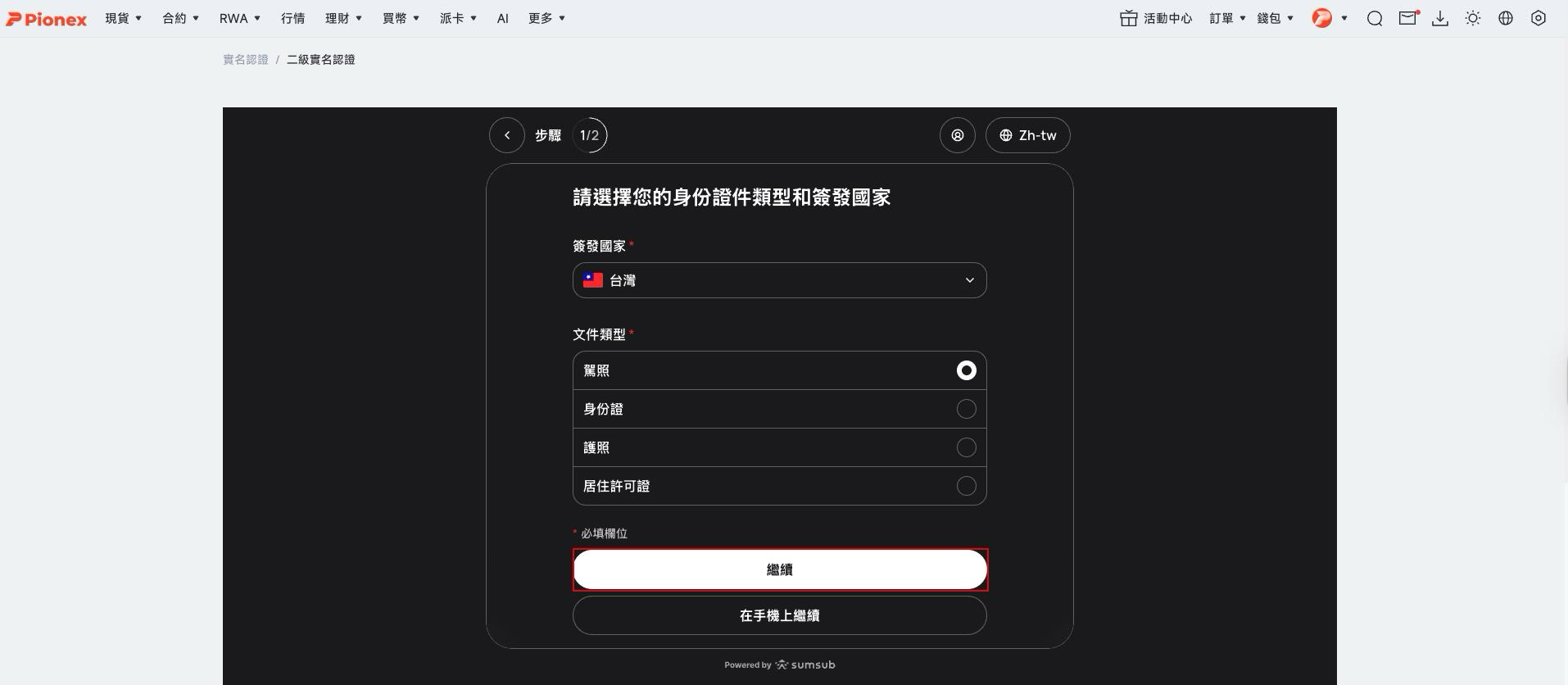
Image source: Pionex Help Center
- Upload the front and back of your ID. The photos must be clear and unedited. Click “Continue”.
- On the “Get your camera ready” page, click “Continue”, allow camera access when the browser asks, follow the on-screen instructions to complete the liveness check, and submit.
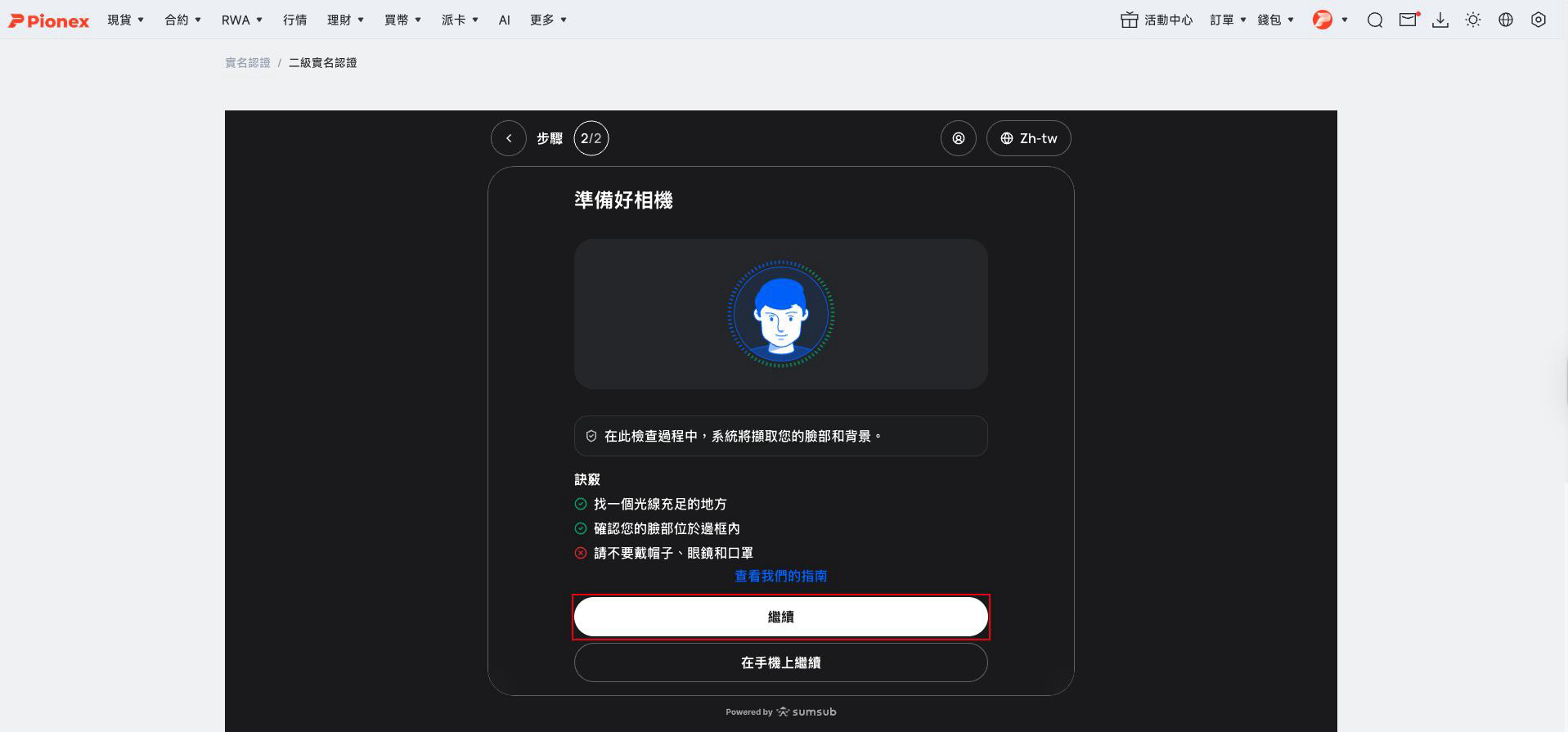
Image source: Pionex Help Center
In its beginner’s guide, Pionex strongly recommends doing the face scan in the app, because phone cameras are usually more compatible with the liveness detection system than computer webcams. On the website, when you reach step 4 you can simply choose “Continue on phone”.
Pionex KYC steps in the app
- Open the app, tap the avatar in the top-left of the “Home” screen, go to your profile, tap “Real-Name Verification”, then tap “Get Verified” (the guide’s text calls these Pionex, the avatar icon, Identity Verification and Verify).
- Level 1 works the same as on the website: choose your country or region, enter your legal name, tick the declarations that apply, and tap “Submit”. Further down the same page is a link that reads “Want a higher withdrawal limit? Go straight to Level 2”.
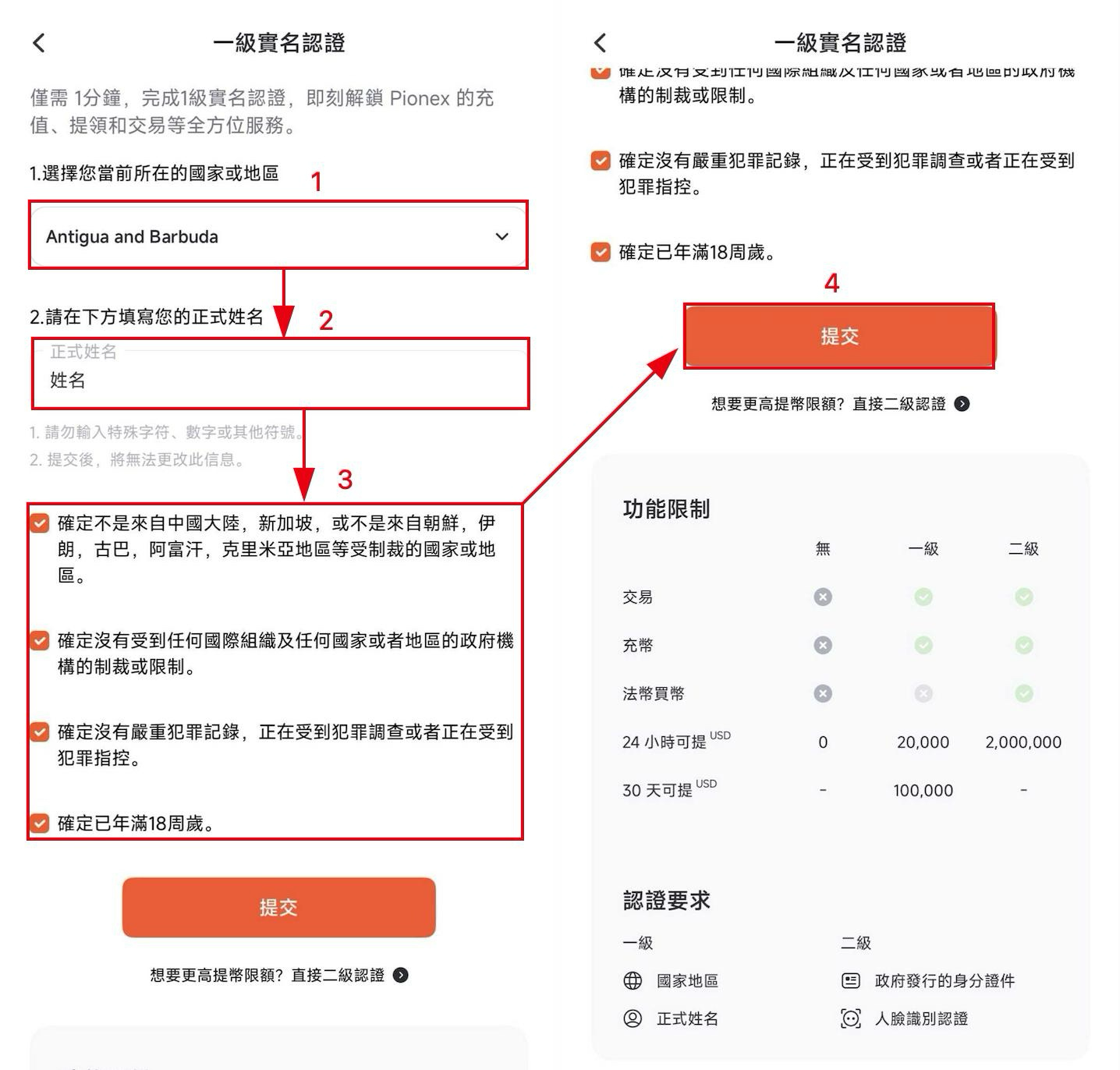
Image source: Pionex Help Center
- Level 2: tap “Upgrade”, read the identity verification notice, then tap “Start”.
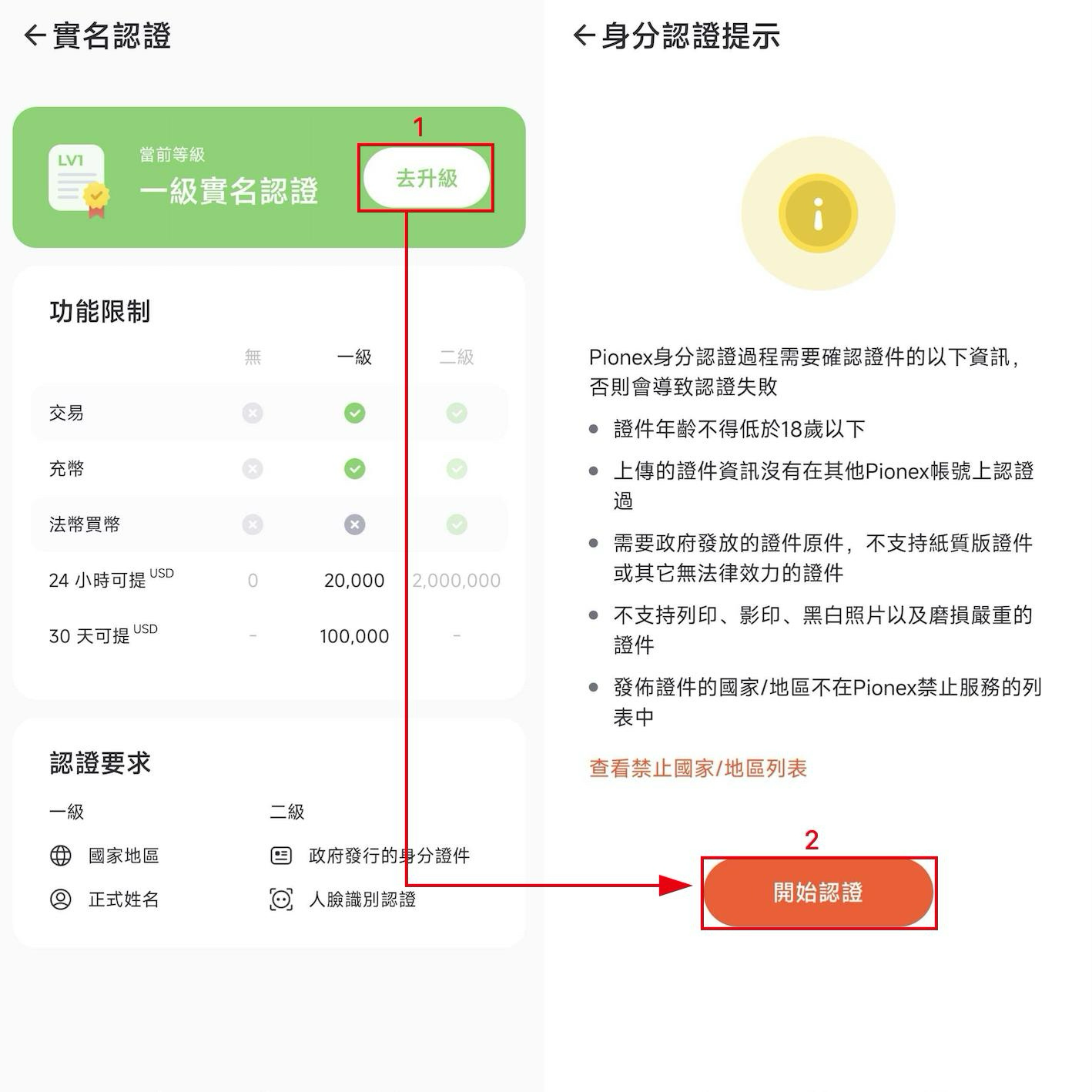
Image source: Pionex Help Center
- Tap “Continue”, choose the issuing country and ID type, allow camera access and photograph your ID directly. Check that it’s clear, then tap “Document is clear and readable”.
- Tap “Continue”, follow the on-screen instructions to complete the liveness check, and submit.
How long does Pionex KYC review take, and what if you’re rejected?
Pionex’s stated review time is within 1 hour in normal cases and 1–3 business days in complex cases. Reviews are handled by a dedicated team, and customer support can’t approve you directly. If you’ve been waiting too long, you can contact support and ask them to pass it on to the relevant department.
If you’re rejected, you can resubmit. Pionex suggests:
- Use a different type of ID, for example a passport or driver’s license instead of a national ID card.
- Make sure the photos are clear, nothing is covered, and they’re taken of the original physical document.
- If you’re using a VPN or the Tor browser, turn it off and try again.
- Try again on a different network or device.
- Face scan failures are mostly caused by poor lighting, not facing the camera directly, other people in the frame, wearing headphones, or a face that looks too different from the ID photo. Hold your phone at eye level and take off glasses, hats, masks and headphones.
One mistake is especially common: choosing the United States in Sumsub’s region selection, which gets you rejected automatically. To fix it, go to the identity verification page, tap “Resolve” on the failure notice, tap “Reapply” and then “Start”, change the region to “All countries except USA”, and continue through the process.
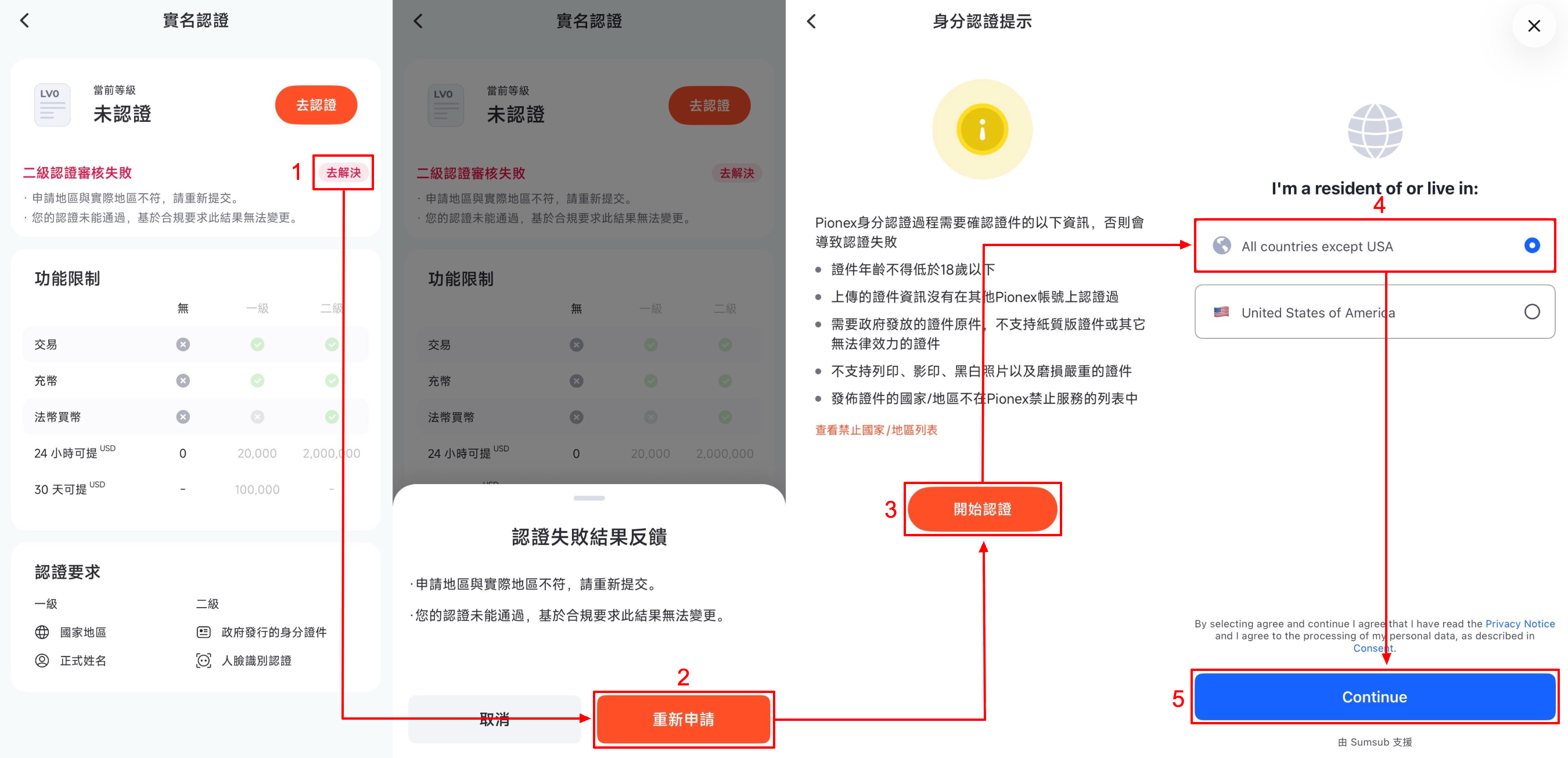
Image source: Pionex Help Center
If the rejection reason is “duplicate identity information”, that identity has already been verified on another account. To keep using the old account, just log in to it. To use the new one, you first have to request closure of the old account and wait for the 30-day cooling-off period to end before verifying your identity on the new account. If you were permanently rejected for a forged document or fraud, that account can’t apply again, and deleting it to open a new one won’t work either.
What should users in Taiwan know about KYC?
Taiwan isn’t on Pionex’s restricted list. In Pionex’s list of countries and regions not supported for phone codes and identity verification, updated 2026-10-13, the regions where KYC can’t be completed include mainland China, Hong Kong (China), Singapore, the United States, Canada, the United Kingdom, France, the Netherlands and Japan, among others; regions outside the list can complete phone registration and identity verification normally. For how exchanges’ restricted regions compare, see exchange restricted countries.
The issuing country in Pionex’s official website example screenshot is Taiwan, with four document types available: driver’s license, ID card, passport and residence permit. What you can actually choose is whatever the process shows after you pick the issuing country.
For fiat, keep deposits and withdrawals apart. The 2021 upgrade announcement labeled this row “TWD deposits” (New Taiwan dollar) and required Level 2. The current beginner’s guide calls it “fiat deposits”, still requires LV.2, and notes that completing KYC doesn’t mean fiat services are available in every region. For withdrawals, Pionex’s guide to selling to a local bank account answers “no” to whether you can sell crypto into a local bank account in Taiwan as TWD. So even after completing KYC on Pionex, you still can’t cash out directly to a Taiwanese bank account.
As for your name, the name you enter for LV.1 can’t be changed after you submit it. If you got it wrong, you don’t need to open a new account: once you complete LV.2, the system switches to the legal name on your ID. Beyond this, the official Help Center has no other KYC rules specific to users in Taiwan.
Is Pionex KYC safe? How is your personal data used?
Here’s what Pionex’s official documentation states:
- Pionex uses Sumsub for KYC identity verification, and the Level 2 screen is marked Powered by sumsub at the bottom.
- Your account doesn’t display the type, number or images of the ID you submitted, only your current verification level.
- Pionex says it doesn’t collect occupation details or your full address; KYC records only your country or region.
- KYC data isn’t routinely shared with third parties. It may be disclosed only when required by law (for example a subpoena, a court order, or a lawful request from law enforcement or a regulator); Pionex’s privacy policy has the details.
Risk controls may also ask for a face scan when you withdraw, and this step can’t be skipped or turned off. Pionex’s explanation is that 2FA confirms “it’s you logging in”, while the face scan confirms, before funds leave the account, that the person doing it is the verified account holder (why face verification is required for withdrawals).
What you can do yourself: verify only on pionex.com or in the official app, and never send your ID photos, selfies or face videos to anyone who says they can “get you through KYC”. Pionex states that not even its support staff can push a review through. To correct your details, the official channel is an email to [email protected]. For common tactics, see crypto exchange scam types and rebate scam warning signs.
What 3 things should you do first after KYC is approved?
Once your identity verification is approved, you can deposit. Before you deposit, I recommend getting these three things done first:
- Turn on two-factor authentication (2FA) or a passkey: link Google Authenticator under “Account Security” (Pionex: link Google Authenticator). Pionex also has passkeys, an optional feature that lets you log in and confirm withdrawals with Face ID or a fingerprint (Pionex passkey introduction).
- Confirm official channels: I found no anti-phishing code feature in the Pionex help center, so when you receive a message or link claiming to be from Pionex, check it on the official verification page first (Pionex official channel verification guide).
- Test with a small withdrawal first: the first time you withdraw to a new address, send a small amount, confirm it arrived, then send the larger amount (Pionex withdrawal guide). With the withdrawal whitelist on, you can withdraw only to pre-approved addresses; adding a new address requires confirmation by email, SMS and authenticator, and it takes effect after 24 hours (Pionex withdrawal whitelist).
These three steps protect your own account; the platform’s own security record, hacks and proof of reserves are covered in the Pionex review.
FAQ
How long does Pionex KYC take?
According to Pionex, within 1 hour in normal cases and 1–3 business days in complex cases.
Can I trade or withdraw on Pionex without KYC?
No. Unverified accounts can’t trade or deposit crypto, and their withdrawal limit is 0. The 2021 announcement also states that users who registered after 2021-12-01 00:00 (UTC+8) must complete identity verification to use all features.
Can I use a family member’s or someone else’s ID for KYC?
No. Pionex strictly prohibits buying, selling, transferring or lending accounts or KYC information. Each account is for the holder’s use only, and not even spouses can share one. If your account is asked for face verification and the person doing it isn’t the one who completed Level 2, the verification won’t pass and the account will stay restricted. Pionex doesn’t accept another ID, an email appeal or a manual review in its place (what to do when face verification isn’t the account holder).
What should I do if Pionex KYC fails?
You can resubmit: switch to a different ID, photograph the original clearly, turn off your VPN, or change network and device. If you were rejected for choosing the United States by mistake, reapply from “Resolve”. If it still doesn’t work, or the system no longer lets you retry, contact Pionex support.
How many Pionex accounts can one person have?
Each KYC identity can verify only one Pionex account. KYC can’t be moved to a new account either. To switch accounts you have to close the old one, and the same email, phone number or KYC identity can only be used to register and verify again after a 30-day cooling-off period.
Can I transfer my Pionex KYC to a new account?
No. Pionex states that Level 2 identity verification is tied to a single identity and can be completed on only one account; to switch accounts, you must close the old one first and wait 30 days from the closure date, and using a different ID doesn’t skip this wait (Pionex identity verification guide). I found no KYC transfer process in the help center. For the conditions on binding a referral code and switching accounts, see how to change your Pionex referral code.
Can I change my name or details after KYC?
Not by yourself in the app or on the website; you have to email [email protected]. For a legal name change, attach the front and back of your new ID and proof of the name change. If it’s just a misspelling or your first and last names are reversed, a short explanation is enough. If your ID number or date of birth is wrong, attach a photo of the new ID and a video of you holding the ID with your face visible. Pionex says updates are usually completed within 3 business days.
Does an expired ID affect my account?
If your ID expires after you’ve completed KYC, your account and features aren’t affected; if you want to update it, send the new ID to the official support email. If you haven’t completed LV.2 and are asked to verify (for example before a withdrawal) but your passport has expired, you can use a national ID card, driver’s license or residence permit instead; it also needs to be valid for at least 6 more months.
Sources
These are the official Pionex pages used in this article. Dates are the last-updated dates shown on each page, accessed 2026-10-13. All screenshots in the article come from the first two.
- How to complete KYC verification (2026-08-15): website and app steps, step screenshots
- Beginner’s guide to identity verification (2026-10-13): levels, ID requirements, review time, handling rejections, screenshot of the wrong-USA fix
- Pionex identity verification upgrade announcement (updated 2026-08-20, published 2021): the older level and limits table
- List of countries and regions not supported for phone codes and identity verification (2026-10-13)
- Why face verification is required for withdrawals (2026-08-05)
- Face verification not matching the account holder: how to lift the account restriction (2026-08-21)
- How to sell crypto to a local bank account (third-party channels) (2026-09-27)
- Adding an invitation code later (2026-09-24)
If you haven’t signed up yet, the referral code and sign-up steps are in Pionex referral code. After signing up, to confirm your referral code is bound, see how to check whether your referral code is bound. Full fee details are in Pionex fees explained, and Pionex’s reserves, safety record and restricted regions are in the Pionex review.