


Updated Rules checked 2026-10-13
Identity verification (KYC) is now mandatory on Bitget. The official FAQ states: “Starting from January 1, 2024, identity verification is required to use core services such as crypto deposits and trading.” Without individual verification you cannot deposit crypto or trade, and on-chain withdrawals are only fully enabled after verification.
You need one government-issued ID (depending on your country/region, a national ID card, passport or driver’s license), a phone whose camera you can use for face verification, and a name that matches your ID. On review time, three official Bitget guides say different things: the FAQ says it “usually takes 60 minutes,” the web and app guides say it “usually takes 1 business day,” and the Academy article says “within an hour” and “no longer than 4 hours at most.” All three statements and their sources are listed side by side below.
Key points: since January 1, 2024, Bitget has required identity verification before you can use core services such as crypto deposits and trading. Individual verification requires a government-issued ID and face verification. On the web, the entry point is the profile icon at the top right → Identity verification → Verify under Individual verification; in the app, it is the Verify button on the home screen. The official review times come in three versions: the FAQ says usually 60 minutes, the web and app guides say usually 1 business day, and the Academy article says no longer than 4 hours at most. After verification, the 24-hour withdrawal limit at VIP 0 is 3 million USDT. Each person can verify only one Bitget main account, with at most 5 attempts within 24 hours; once those are used up, you have to wait 24 hours.
The information below was checked against Bitget’s official guides on 2026-10-13 (fact-check date). The screenshots come from the Bitget Help Center and are shown for reference.
Not signed up yet? Enter the referral code before KYC
KYC comes after sign-up, while the referral code goes on the sign-up page. Bitget’s referral rules state that inviting users who have already registered does not count, so if you want to use a referral code, enter it during sign-up. The sign-up steps are in Bitget referral code; once you have signed up, come back and follow this guide for identity verification.
This site’s Bitget referral code is KEVINWU; just enter it when you sign up.
If you have already signed up without a referral code, the conditions for switching are covered in switching your Bitget referral code.
What are Bitget’s KYC levels, and what does each unlock?
Bitget’s Traditional Chinese guides describe only one type, individual verification. The official screenshots label it “Level 1 identity verification,” and the 2026 screenshots say “Basic identity verification.” Proof of address is a separate step that only some users are asked to complete. Here are the statuses the official guides mention:
| Status | What you submit | What you can do | Withdrawal limit |
|---|---|---|---|
| Unverified | Only your sign-up details | No access to core services such as crypto deposits and trading; in the screenshot, crypto deposits, fiat deposits and P2P are all unavailable | The Academy screenshot shows 20K USDT (20,000 USDT) |
| Individual verification (Level 1) | Government-issued ID, face verification | Withdrawals, crypto deposits, fiat deposits, P2P trading | 3 million USDT per 24 hours at VIP 0, higher at higher VIP levels |
| Proof of address (POA) | A proof-of-address document from the last three months | Not listed in the official guides; they only say some users are asked for it “due to regulatory and compliance reasons” | Not listed in the official guides |
Sources: Individual verification FAQ, Bitget identity verification quick guide, How do I upload proof of address?. The Help Center also has a separate “enhanced due diligence” category, which this guide does not cover.
For withdrawal limits after verification, the official FAQ gives a table by VIP level:
| VIP level | 24-hour withdrawal limit |
|---|---|
| VIP 0 | 3 million USDT |
| VIP 1 | 4 million USDT |
| VIP 2 | 6 million USDT |
| VIP 3 | 8 million USDT |
| VIP 4 | 10 million USDT |
| VIP 5 | 12 million USDT |
| VIP 6 | 15 million USDT |
| VIP 7 | 20 million USDT |
Source: Individual verification FAQ. The Academy article (2024-11-12) says “higher VIP levels can reach up to 15 million USDT,” which differs from the VIP 7 figure in this table; Bitget also asks users to rely on the latest limits on its fee page. Taking VIP 0 as the example, going from 20,000 USDT unverified to 3 million USDT verified is a 150-fold increase in the withdrawal limit.
What do you need for Bitget KYC?
- ID document: first choose your country/region of residence and the country/region that issued your ID; only then does the drop-down list show the documents you can use. Bitget says “depending on your country/region, you can choose an ID card, passport or driver’s license,” and some countries/regions only accept specific documents, such as a national ID card.
- You upload three photos: the front of the ID (all four corners and edges visible), the back of the ID (needed for some document types), and a selfie. If you use a passport, photograph the data page together with the facing page as the front photo.
- Name: enter your full name, with any middle name after your first name. Bitget’s example uses the full name John Michael Doe: first name “John Michael,” last name “Doe.” All details must match your ID.
- Face verification: allow camera access on your device; use a plain white background with good lighting and avoid backlight; do not wear a hat, glasses or a mask; keep your face in the center of the frame and turn your head or blink as prompted.
- Proof of address (only if you are asked for it): a document from the last three months, in the same name as your KYC ID, clearly showing your full name, address and issue date, such as a government document, a utility or phone/internet bill, a bank statement, a document from an employer or educational institution, or a lease. The upload screen accepts JPG, PNG, HEIC, WEBP or PDF, up to 5 MB.
Bitget KYC steps on the web
The screenshots in the official guides show the English interface, and the button names below are the English labels shown in those screenshots. The layout of your interface may differ from the screenshots.
- Log in to your Bitget account, click the profile icon at the top right, and choose Identity verification from the drop-down menu.
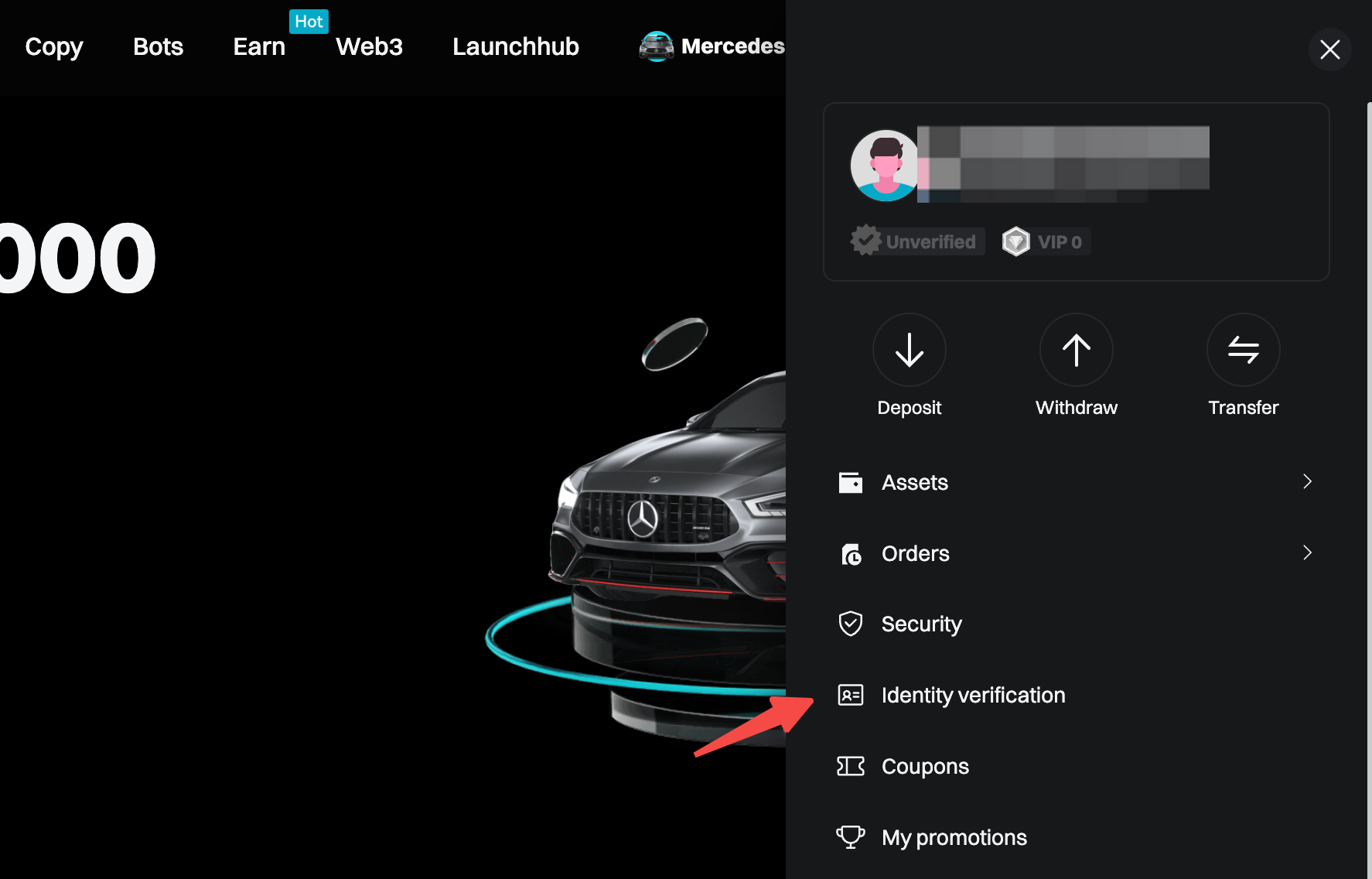
Image source: Bitget Help Center
- Under Individual verification, click Verify. The page lists the features available after verification, what you need to prepare, and the estimated review time.
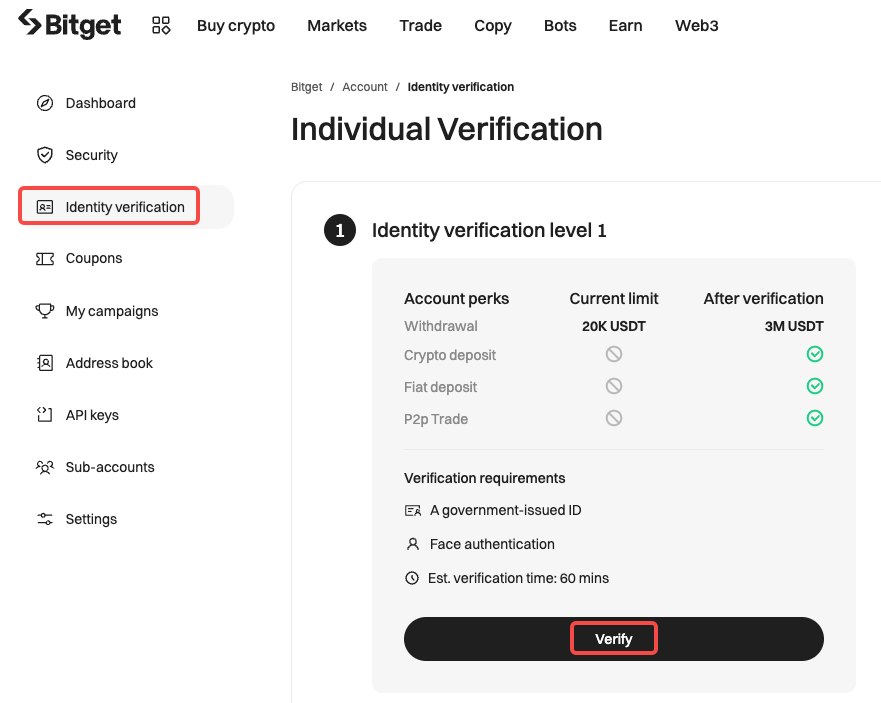
Image source: Bitget Academy (official)
- From the drop-down menus, choose your country/region of residence and the country/region that issued your ID, then the document type, and click Continue.
- Enter your full name and click Continue; a middle name goes in the first name field.
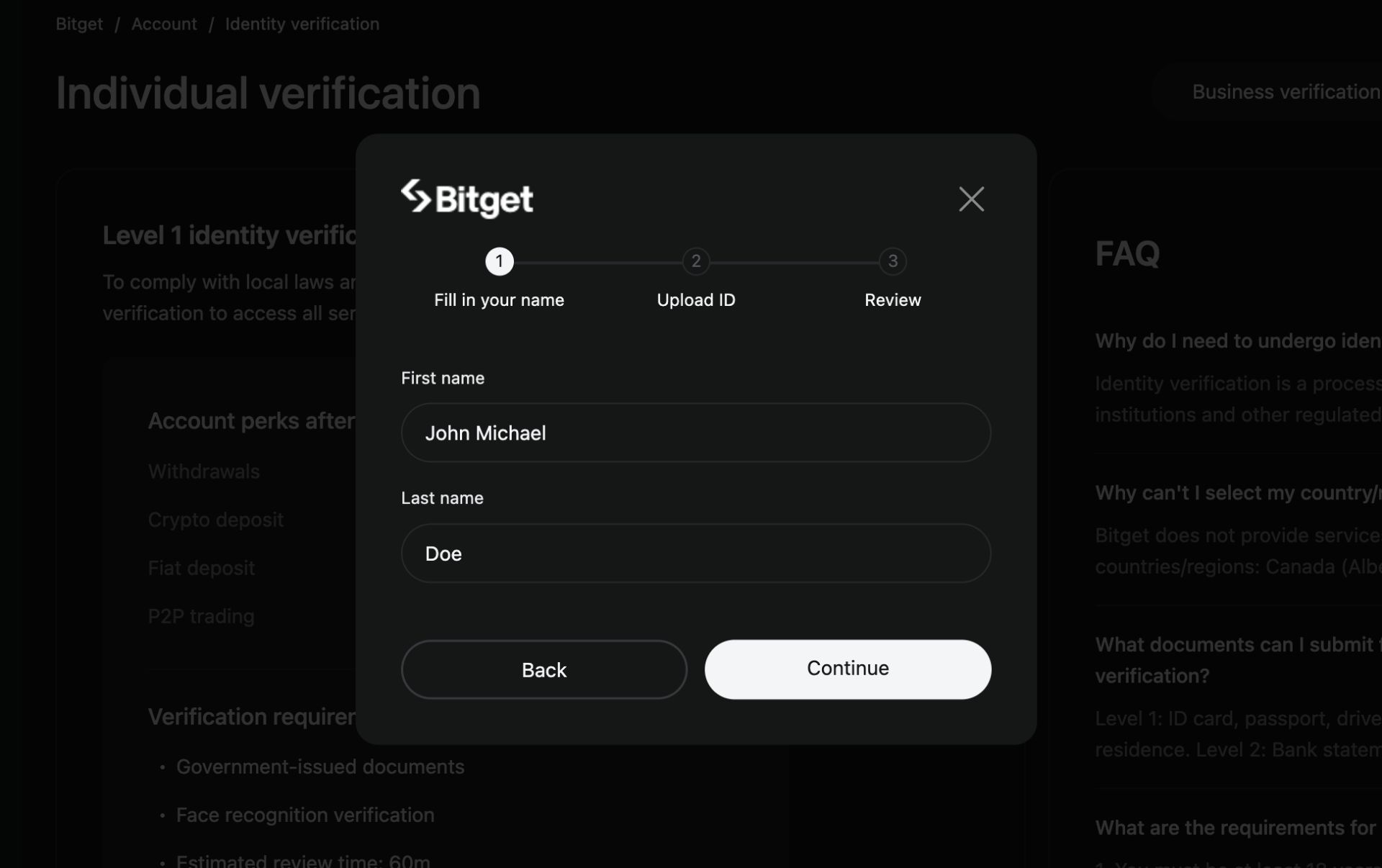
Image source: Bitget Help Center
- Scan the QR code shown on the screen with your phone and photograph your ID on the phone. The images must be clear and not cropped.
- Complete face verification by following the on-screen instructions.
- When you finish, the status changes to “Under review,” and you will get an email when you pass or if more information is needed.
Bitget KYC steps in the app
- Log in to the app and tap Verify on the home screen.
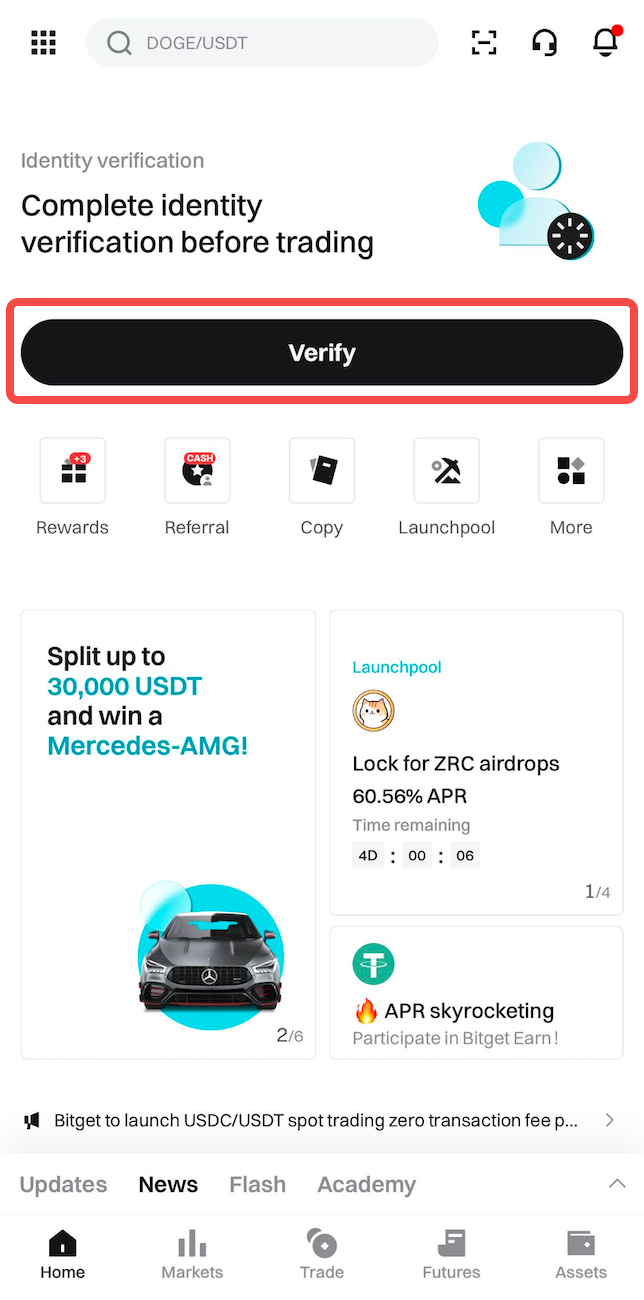
Image source: Bitget Help Center
You can also tap the account center icon at the top left, then tap Unverified:
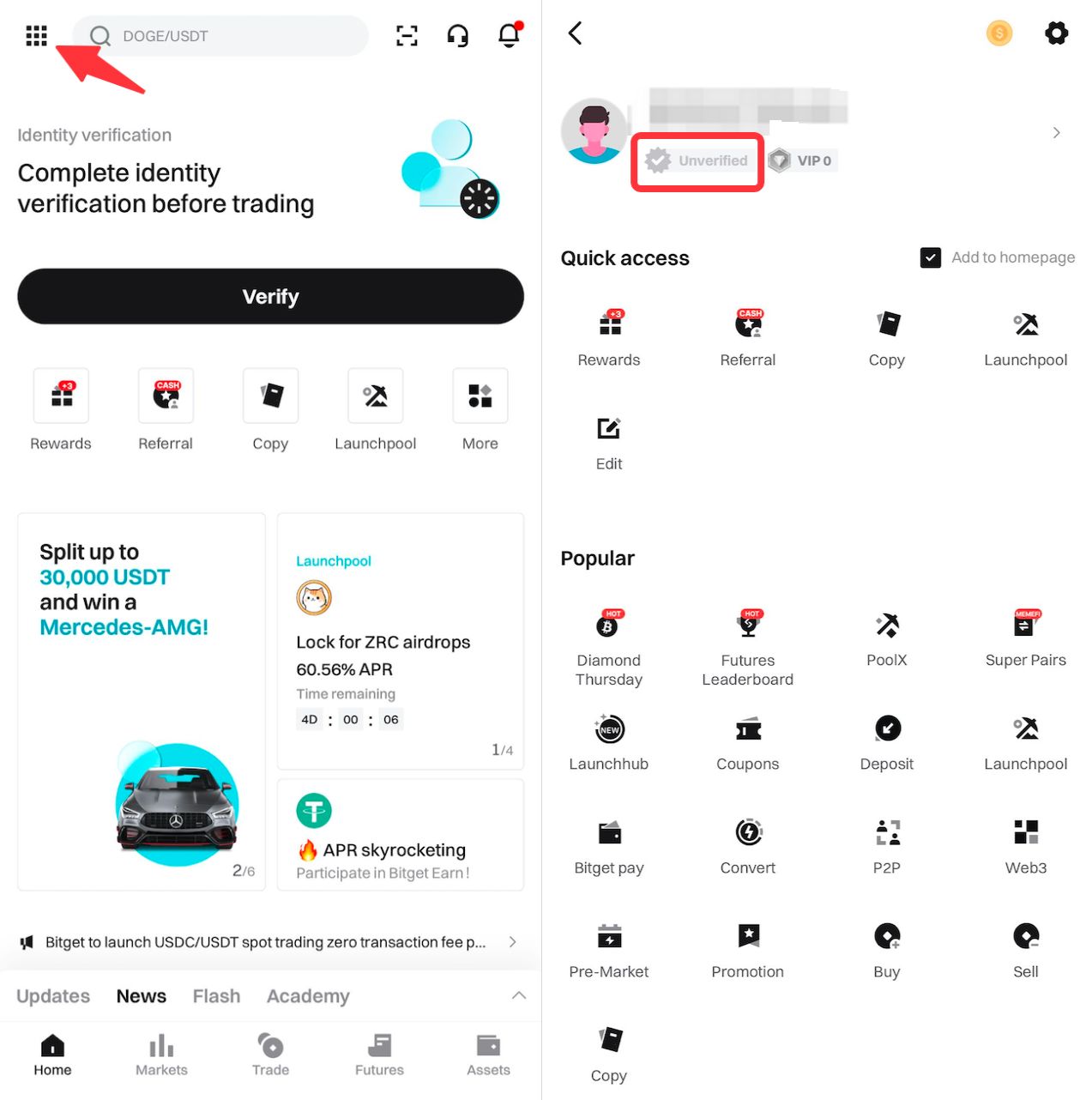
Image source: Bitget Help Center
- Under Individual verification, tap Verify.
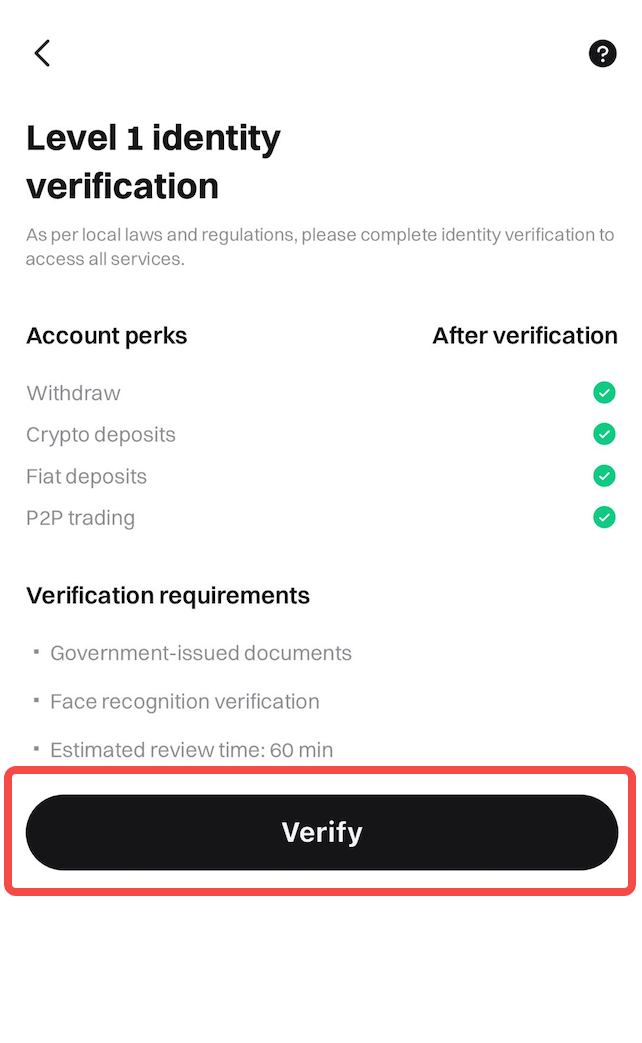
Image source: Bitget Help Center
- Choose your country/region of residence and the issuing country/region, then the document type, and tap Continue.
- Enter your full name and tap Continue.
- Photograph your ID as instructed, making sure the images are clear and not cropped.
- Complete face verification.
- After you submit, the status changes to “Under review,” and the result is sent to you by email.
How do you upload proof of address if you are asked for it?
- Go to your account’s identity verification page and click Update now.
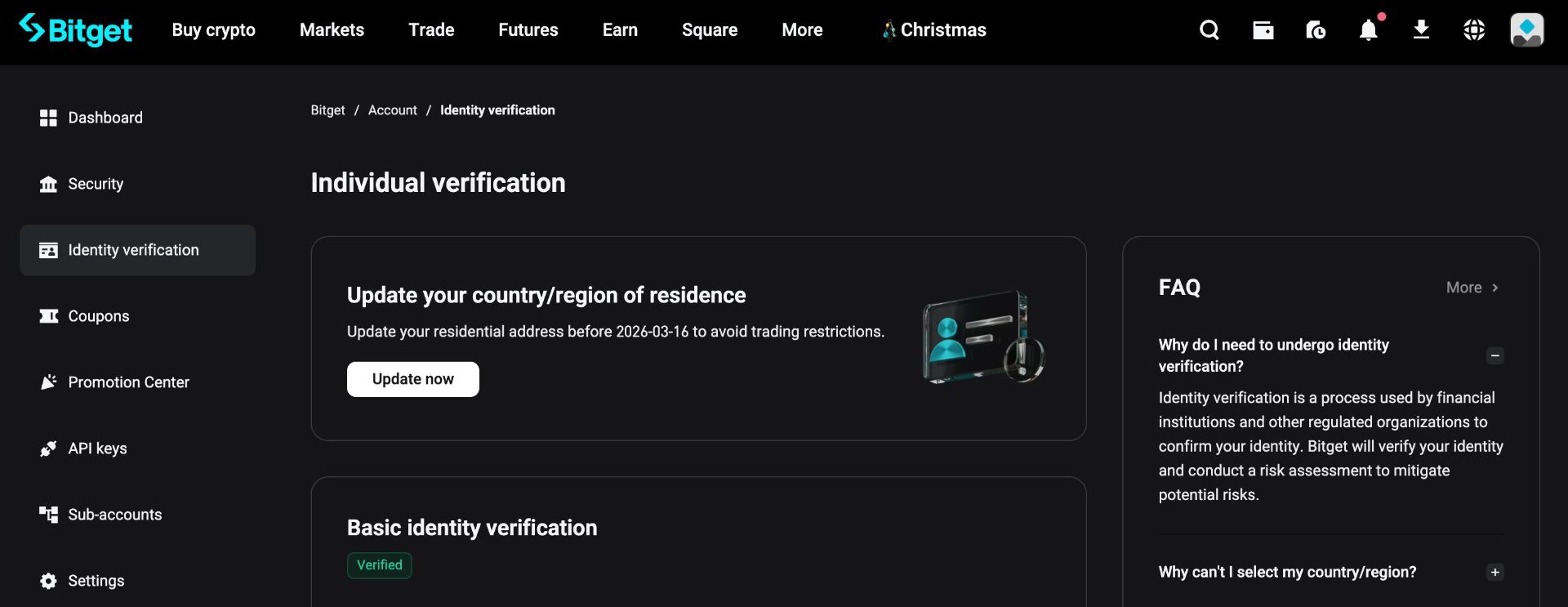
Image source: Bitget Help Center
- In the pop-up window, click Start verification.
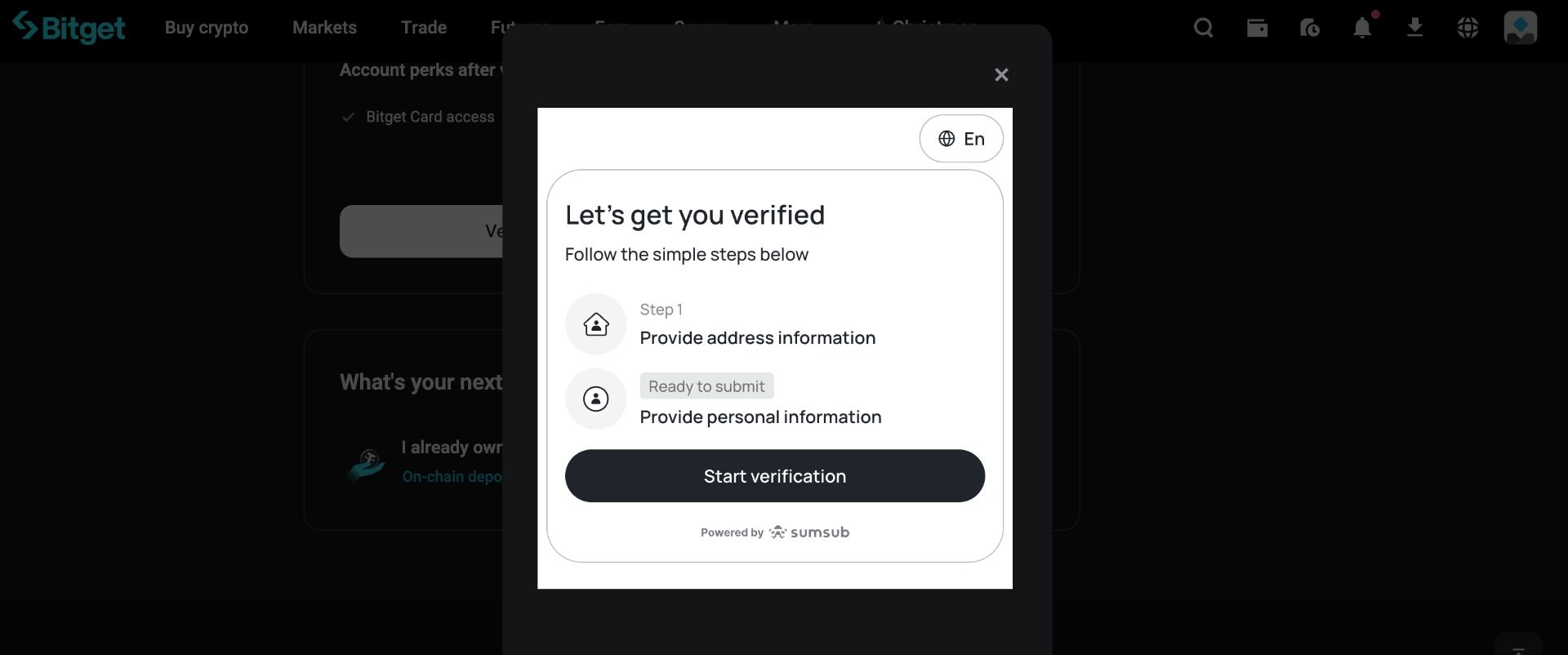
Image source: Bitget Help Center
- Upload your proof-of-address document and submit it for review.
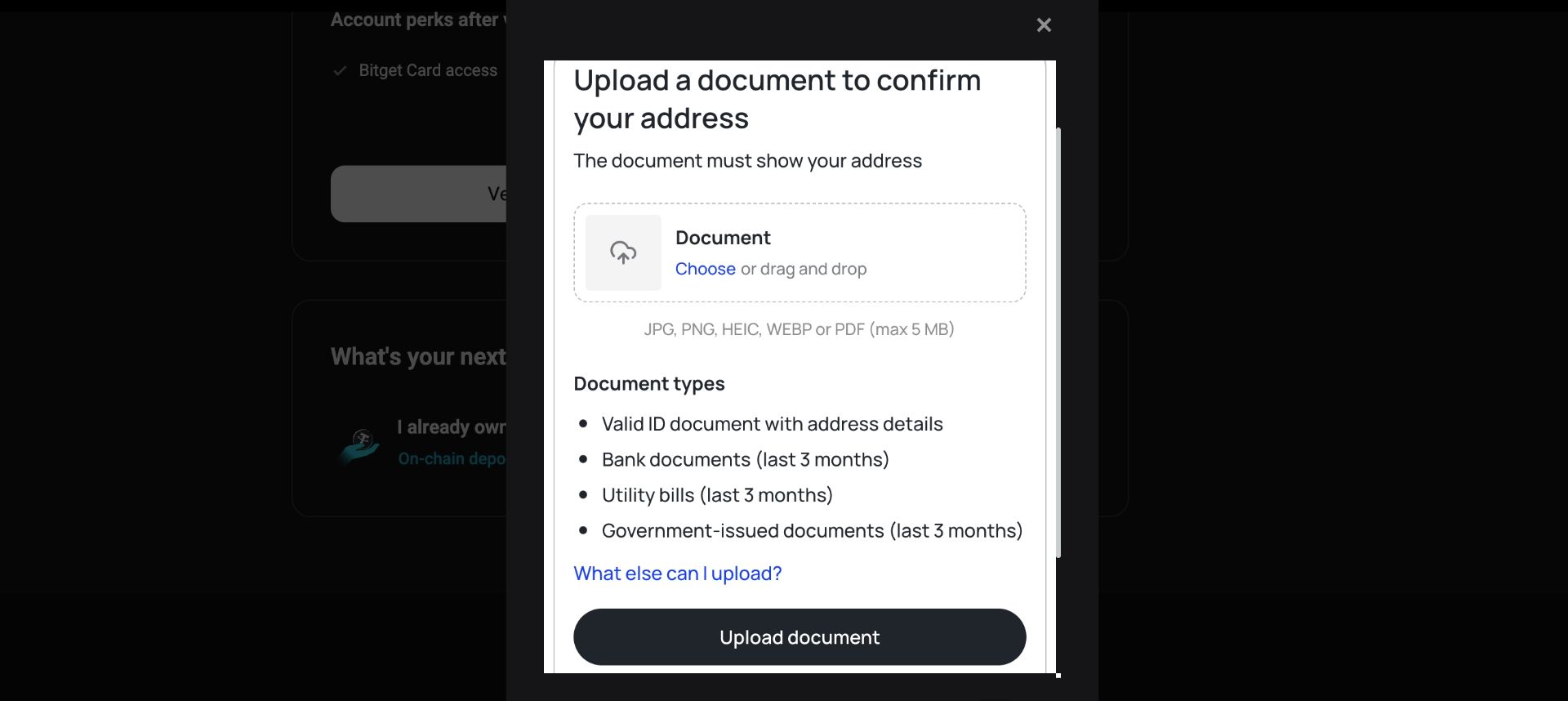
Image source: Bitget Help Center
How long does KYC review take, and what if you are rejected?
Bitget’s official pages give three different review times. I have not picked one on Bitget’s behalf; here are all three side by side:
| Official page | Page date | Stated review time | If it takes longer |
|---|---|---|---|
| Individual verification FAQ | 2024-04-26 | “Usually takes 60 minutes” | After 60 minutes, submit a ticket with your UID |
| Website guide, mobile app guide | 2024-04-29, 2024-04-30 | “Usually takes 1 business day” | After 1 business day, submit a ticket with your UID |
| Bitget identity verification quick guide (Academy) | 2024-11-12 | “Within an hour,” “no longer than 4 hours at most” | Not listed in the official guides |
The verification page screenshots for both the web and the app say “Estimated review time: 60 min.” If you are deciding when to contact support, the thresholds on these pages are 60 minutes and 1 business day, depending on which guide you follow.
If you are rejected, Bitget tells you why by email or in an account notification. The Academy article lists common mistakes you can check one by one:
- The ID photo is cropped and the information is incomplete.
- The ID is a poor-quality black-and-white photo or scan.
- The ID photo has reflections or glare.
- Your eyes are closed in the selfie, or you are wearing a hat, glasses or a mask (any one of these is enough to fail).
- The selfie is too dark, too bright or blurry.
- The Academy also mentions mismatched information and invalid document types.
After fixing the problem, apply again as prompted, but watch the attempt count: you get at most 5 attempts within 24 hours, and if all of them fail you have to wait 24 hours before trying again. Checking the list above before you retake the photos saves more attempts than submitting again and again.
If you find after verification that your name does not match your legal name, you can use “Change name” on the individual verification page, giving the correct name and uploading a supporting document; the Academy article says instead that errors in your name, date of birth or other details require contacting customer support. You cannot delete your identity verification yourself, except when the account has been deleted or your nationality has changed (for example, after emigrating). Resetting identity verification usually takes 1 business day, and you cannot deposit or trade until you complete verification again.
What should users in Taiwan watch out for with KYC?
None of the official Bitget guides I checked have KYC rules specific to Taiwan. Which documents you can choose depends on the country/region of residence and issuing country/region you select during the process, so go by the options shown on screen. A few points are more relevant to users in Taiwan:
- Name fields: Bitget’s example uses English first name / last name fields and only requires that “all details match the information on your ID document”; it does not explain how to enter a Chinese name. Before you submit, check every character against the ID you chose.
- Choose the right country/region: the Academy article notes that your country/region choice affects which document types are accepted.
- Proof-of-address validity: Bitget wants a document from the last three months (for Binance’s proof of address it is 6 months in most regions), so if you are asked for one, find your most recent bill or statement.
- Residence update: the 2026 official screenshot shows a prompt card to “update your country/region of residence to avoid trading restrictions,” and the official guide does not say which users will see it. If this card appears in your account, deal with it by the deadline shown on the page.
Each exchange’s service restrictions by country are covered in exchange restricted countries.
Is KYC safe, and how is your personal data used?
According to Bitget, identity verification is part of global KYC compliance standards and is used to control risk, prevent fraud, and protect account and asset security; proof of address is for meeting regulatory requirements and keeping account information accurate. The proof-of-address upload window is labeled “Powered by Sumsub,” which means the third-party provider Sumsub handles it; whether individual verification itself uses the same provider is not stated in the guides I checked. How your personal data is handled is governed by Bitget’s privacy notice.
In practice, I suggest sticking to two rules. First, verify only on Bitget’s official website or in the official app; the Bitget site footer links to an “official verification channel” page you can use to check whether a person or URL contacting you is really from Bitget. Second, never send photos of your ID or selfies to anyone offering to “do your KYC for you” or “lift your restrictions.” Bitget also warns that users bear any loss of funds caused by misuse of KYC information. Common tactics are covered in crypto exchange scam types, and the signs of rebate-related scams are in rebate scam warning signs.
What 3 things should you do first after KYC is approved?
Once your identity verification is approved, you can deposit. Before you deposit, I recommend getting these three things done first:
- Turn on two-factor authentication (2FA) or a passkey: link Google Authenticator in the Security Center and back up the key (Bitget: enable Google Authenticator). Bitget also supports passkey login; a passkey is bound to the official domain and works only on Bitget’s official domain, so fake sites can’t get it (Bitget passkey setup).
- Set an anti-phishing code: once set, the code appears in Bitget’s emails and text messages and on its login page (Bitget anti-phishing code setup).
- Test with a small withdrawal first: Bitget states that crypto withdrawals can’t be reversed, so the first time you withdraw to a new address, send a small amount, confirm it arrived, then send the larger amount (Bitget withdrawal guide). With the whitelist on, you can withdraw only to addresses saved in your address book (Bitget withdrawal settings).
These three steps protect your own account; the platform’s own security record, hacks and proof of reserves are covered in the Bitget review.
FAQ
How long does Bitget KYC take?
The official FAQ says usually 60 minutes, the web and app guides say usually 1 business day, and the Academy article says no longer than 4 hours at most. The verification page screenshots show an estimated 60 minutes; if it takes longer than the time stated in the FAQ or the guides, you can submit a ticket with your UID.
Can you trade or withdraw on Bitget without KYC?
You cannot trade or deposit crypto. Since January 1, 2024, these core services have required identity verification first. As for withdrawals, the Academy screenshot shows a 20K USDT withdrawal limit for unverified accounts, while the FAQ lists “enabling on-chain withdrawals” as a benefit of verification; go by what your account page shows.
Can you use a family member’s or someone else’s ID for KYC?
No. Bitget states that the selfie is used to confirm “you are the person on the ID document,” so the face verification and the ID must belong to the same person. Using the same ID for multiple accounts is also rejected, and Bitget warns that users bear any loss of funds caused by misuse of KYC information.
What should you do if Bitget KYC fails?
First read the rejection reason in the email or account notification, fix it, and submit again. Common reasons are a cropped photo, glare, a black-and-white scan, closed eyes in the selfie, wearing a hat, glasses or a mask, and poor lighting. You get at most 5 attempts within 24 hours; once they are used up, you have to wait 24 hours.
How many Bitget accounts can one person have?
Each person can verify only one Bitget account. If you need to manage funds separately, Bitget suggests opening sub-accounts under your verified main account.
Can I transfer my Bitget KYC to a new account?
No, Bitget has no KYC transfer feature. Its individual verification FAQ states that each user can verify only one Bitget account, and using the same ID document on multiple accounts will be rejected (Bitget individual verification FAQ). Bitget does offer “Reset identity verification,” which is meant for changes such as a new nationality or a lost or renewed ID; moving to a different UID to verify again requires review and approval, plus a 30-day wait (How to reset Bitget identity verification). For the limits on switching referrers, see how to switch your Bitget referral code.
Do sub-accounts need their own KYC?
No, and sub-accounts cannot complete it themselves. Individual verification can only be done on the main account; once it is done, sub-accounts automatically inherit the same access rights.
Can you change your name or details after KYC verification?
Your name, yes: use “Change name” on the individual verification page and upload a supporting document. For errors in other details such as your date of birth, the Academy article says to contact customer support. The verification itself cannot be deleted, except when the account is deleted or your nationality changes.
Sources
- Bitget: How do I complete KYC for my Bitget account? Website guide (2024-04-29): the screenshots of the web menu and name fields come from this page.
- Bitget: How do I complete KYC for my Bitget account? Mobile app guide (2024-04-30): the app step screenshots come from this page.
- Bitget: Individual verification FAQ (2024-04-26)
- Bitget: How do I upload proof of address? (2026-02-12): the proof-of-address screenshots come from this page.
- Bitget Academy: Bitget identity verification quick guide (2024-11-12): the screenshot of the web individual verification page comes from this page.
The pages above were checked on 2026-10-13. If you have not signed up yet, the referral code and sign-up steps are in Bitget referral code; fees are covered in Bitget fees, and Bitget’s reserves, security record and restricted regions are in Bitget review. To check after sign-up whether your referral code is linked, see how to check whether your referral code is linked.