


Updated
The most common way to deposit on Pionex is to have USDT ready on another exchange or in a wallet, then go to “Wallet” → “Deposit” on the Pionex website (in the app: “More” → “Deposit/Withdraw” → “Deposit”), pick the coin and network, copy the address and send the funds in. Crypto deposits are free. To withdraw, choose “On-chain withdrawal” under “Withdraw”, enter the address and network, and send the funds to your own wallet or to another exchange. If the recipient also uses Pionex, use “Internal quick transfer” instead and enter their 8-digit UID; Pionex states that these transfers are free and arrive instantly.
For New Taiwan dollars (TWD), Pionex’s bank card purchase accepts TWD payment (Visa, Mastercard), but the reverse does not work: asked whether crypto can be sold into a local Taiwanese bank account as TWD, Pionex’s answer is that this is not supported. The three most common transfer mistakes are choosing the wrong network, sending less than the minimum deposit, and using an old deposit address. A deposit below the minimum is neither credited nor refunded. If you chose the wrong network, you can apply for manual recovery within 30 days; Pionex does not guarantee success, and the fee starts at 20 USDT.
Below I have put together the deposit and withdrawal steps for the website and the app, the USDT fee and minimum on each network, and how Pionex officially handles withdrawals that get stuck, each with an official Pionex source.
Key points:
1. Crypto deposits on Pionex are free. Pionex’s official withdrawal fee guide lists 8 USDT networks: TRC20, ERC20, BEP20, Arbitrum One, Avalanche C-Chain, Optimism, Plasma and Solana. Polygon and TON are not among them.
2. Official fees read on 2026-10-31: a USDT withdrawal costs 0.011 USDT on Plasma, 0.2 USDT on BEP20, 1 USDT on TRC20 and 1.0522 USDT on ERC20. The minimum withdrawal is 2 USDT on TRC20 and 0.6 USDT on BEP20.
3. You can only withdraw from the main account, and you must bind Google Authenticator before your first withdrawal. A withdrawal that is still “Under review” can be canceled by you.
4. After you reset your password, unbind your phone or email, or bind Google Authenticator, you cannot withdraw for 24 hours. Coins bought with a bank card through quick buy or through C2C can by default only be withdrawn after T+1 (24 hours).
5. Transfers to other Pionex accounts through internal quick transfer are free and arrive instantly, with a minimum of 2 USDT. With the withdrawal whitelist turned on, a newly added address can only be used after 24 hours.
The information below was checked against Pionex’s official pages on 2026-10-31 (data check date) and is provided for your reference.
How to deposit on Pionex: USDT deposit steps (website and app)
Pionex requires Level 1 verification (LV.1) before you can deposit. Unverified accounts cannot deposit or trade; the verification steps are in the Pionex KYC guide. Before you start, decide which network the sending side will use. Button names follow Pionex’s official help articles; if the interface has changed, go by what you see on screen.
Deposit steps on the website
- Log in to Pionex and click “Wallet” → “Deposit” → “Deposit”.
- Click the drop-down arrow, then search for and select the coin to deposit, for example USDT.
- Click the network you want to use, choosing the same one as on the sending platform or wallet.
- Click “Copy address”, paste it into the address field on the sending platform and submit.
- The funds are credited once the blockchain confirmations are complete, and they go to the main account by default. To change that, click “Switch” under “Set receiving account”. Your deposits are listed on the deposit history page.
Deposit steps in the app
- Log in to the app and tap “Pionex” → “More” → “Deposit/Withdraw” → “Deposit”.
- Search for and select the coin, then tap the network you will use for the deposit.
- Tap “Copy” to get the address, paste it on the sending platform, and check the network on both sides once more before you submit.
- Wait for the block confirmations to finish. To track progress, take the transfer ID (TxID) from the sending platform and look up the confirmation count on the matching block explorer.
The steps are based on Pionex: How to deposit crypto (website) and (app), both updated 2026-10-19. Pionex states that the deposit address for each “coin + network” pair is fixed: it does not change when you log in again, switch devices or change browsers, and it cannot be deleted or regenerated (Pionex FAQ on deposit addresses and network management). The “contract address” shown separately on the page identifies the token and cannot be used for deposits.
Which USDT deposit networks are there? Minimum deposits and confirmations
The table below shows the USDT networks and minimum deposit amounts listed in Pionex’s official withdrawal fee guide. Confirmations are listed only for networks that appear in Pionex’s official examples; for the other networks, the number of confirmations is shown in the “Reminder” on the deposit page after you select the network.
| Network | Minimum deposit (USDT) | Confirmations to credit (official example) |
|---|---|---|
| TRC20 | 1 | 27, about 2 minutes expected |
| ERC20 | 1 | Not in official examples |
| BEP20 | 0.1 | 15, about 2 minutes expected |
| Arbitrum One | 0.1 | 100, about 1 minute expected |
| Avalanche C-Chain | 0.1 | Not in official examples |
| Optimism | 0.1 | Not in official examples |
| Plasma | 0.1 | Not in official examples |
| Solana | 0.1 | Not in official examples |
Sources: minimum deposit amounts from the Pionex crypto withdrawal fee guide (updated 2026-08-18), and confirmation examples from the Pionex guide to uncredited deposits (updated 2026-10-19), both checked on 2026-10-31. Pay close attention to the minimum deposit: Pionex states that deposits below the minimum are neither credited nor refunded, and sending a second transfer afterwards will not bring them back.
Which account does a deposit go to, and how do I move it to the futures account?
The main account, by default. Pionex splits funds across four accounts: the main account, the futures account, the payment account and the card account (Pionex Card). You can change the destination under “Set receiving account” on the deposit page. Transfers between these accounts are instant, free and have no minimum. In the app, tap “Transfer” on the home screen, choose the coin, the from and to accounts and the amount, then tap “Transfer”. On the website, go to “Wallet” → “Main account” → “Transfer funds” (Pionex: How to transfer funds between accounts).
When you want to withdraw, the funds need to be in the main account. Pionex states that withdrawals are only supported from the main account, so money in the futures account or the Pionex Card account has to be transferred back first. Running bots and unfilled limit orders also tie up your balance; if you can see USDT but get “Insufficient funds”, that is usually why (Pionex troubleshooting for USDT balance and deposit issues). Futures use leverage, and a position may be force-liquidated if the market moves against you; the rules are in the Pionex futures guide.
What if I used the wrong network, left out the Memo or sent to an old address?
Pionex’s guide to uncredited deposits handles common cases separately. These are the ones most relevant to USDT:
- Sent over a network Pionex does not support: the most common example Pionex gives is sending USDT over Polygon or Base. This can usually be recovered, but only back to an external address that you control on the same network as the original deposit; it cannot be credited to your Pionex account instead.
- Missing Memo: the networks Pionex lists as requiring a Memo are XRP, XLM, TON, ATOM and EOS, and none of Pionex’s USDT networks are among them. This can usually be recovered, but it needs extra verification, such as a screen recording proving the source account, or a second small transfer with the correct Memo.
- Sent to an old address: from April 2, 2026, 00:00 (UTC+8), old deposit addresses are no longer credited automatically. These can usually be recovered, depending on the amount. So always copy the address straight from the deposit page, not from an old screenshot or an old entry saved in your wallet’s address book.
- Below the minimum deposit, or sent to an address that is not Pionex’s: Pionex cannot help. In the second case, contact the receiving platform or wallet directly.
To apply, fill in Pionex’s official asset recovery request form. It must be submitted within 30 calendar days after the transaction went on-chain, and the form asks for the blockchain transaction hash (TXID), not an order number or wallet address. Pionex says it replies by email within 3 business days. Standard recovery fees start at 20 USDT, paid by a separate transfer rather than deducted from the recovered amount, and processing can take up to about 60 business days. If the deposit is smaller than the fee, Pionex’s own explanation says plainly that recovery is not worth it. A comparison of recovery rules across exchanges is in how to recover a deposit sent on the wrong network, and terms such as network, Memo and transfer are explained in deposit and withdrawal terms explained.
How to deposit without USDT: buying crypto with fiat on Pionex
All of Pionex’s fiat deposit and withdrawal services require Level 2 verification (LV.2); Level 1 accounts cannot use them. Which fiat currencies and channels you can use depends on your KYC country or region, so go by what the page shows before you order. These are the channels listed in Pionex’s help center:
- Quick buy (bank card): “Buy crypto” → “Quick buy”. The default channel is Mercuryo, and you can buy USDT or USDC with a Visa or Mastercard credit or debit card. The card must support 3D Secure, and binding it temporarily freezes 1 unit of fiat, released within 72 hours at most. The coins you buy are credited immediately but carry a T+1 (24-hour) withdrawal restriction (Pionex: How to buy crypto with a bank card (quick buy), updated 2026-10-23).
- Third-party channels: on the same page, choose “Bank card (third party)” to see quotes from providers such as Alchemy Pay, Banxa, Simplex and Volet.com. Pionex states that it charges no fee for buying crypto; the quotes come from the providers and may already include the provider’s fee, an exchange-rate spread and the on-chain transfer fee (Pionex: How to buy crypto with a bank card (third-party channels)).
- C2C: 0% trading fee, available only in the app, and currently open only to 12 countries and regions such as Algeria, Egypt, India, Nigeria and the UAE; Taiwan is not on the list. USDT bought through C2C is also subject to T+1 withdrawal (Pionex C2C explained). How P2P works is covered in the P2P buying guide.
- Large USD deposits and withdrawals: buy USDT directly by USD wire transfer, with a minimum of USD 1,000 per transaction and a fee of USD 55 plus 0.2% per transaction, plus a cross-border transfer fee of about USD 10–30. You need a bound email, KYC2 and VIP 1 (if you have not reached it, you can ask support to whitelist you), and review takes 1–3 business days (Pionex guide to large USD deposits and withdrawals).
The rules for card purchases in TWD are in the Pionex bank card purchase FAQ (updated 2026-09-24): NT$400–100,000 per transaction, with a daily limit of 8,000 USDC and a monthly limit of 30,000 USDC. Cards issued in Taiwan count as non-EEA, so each transaction costs 2.6%–2.8%, plus a fixed fee of up to 0.5 U. The same page also lists Taiwanese issuing banks with higher success rates, such as Cathay United Bank, E.SUN, Taipei Fubon, SinoPac, First Bank and DBS (Taiwan). However, the limit table in the quick buy tutorial (updated 2026-10-23) gives 2,000 per day and 6,000 per month for the standard tier, with at most 3 purchases a day and 10 a month. The two official sources give different numbers, so go by what the order page shows.
In money terms: on a NT$10,000 card purchase, the fee alone is NT$260–280. Pionex also notes that your card issuer may charge foreign currency conversion and cross-border payment fees, which Pionex cannot estimate in advance; the calculation is explained in credit card crypto purchase fees. For larger amounts, buying USDT with TWD on a Taiwanese exchange and then sending it on-chain to Pionex (Pionex deposits are free) is usually cheaper; the full route is in how to buy bitcoin in Taiwan.
How to withdraw from Pionex: on-chain withdrawal steps (website and app)
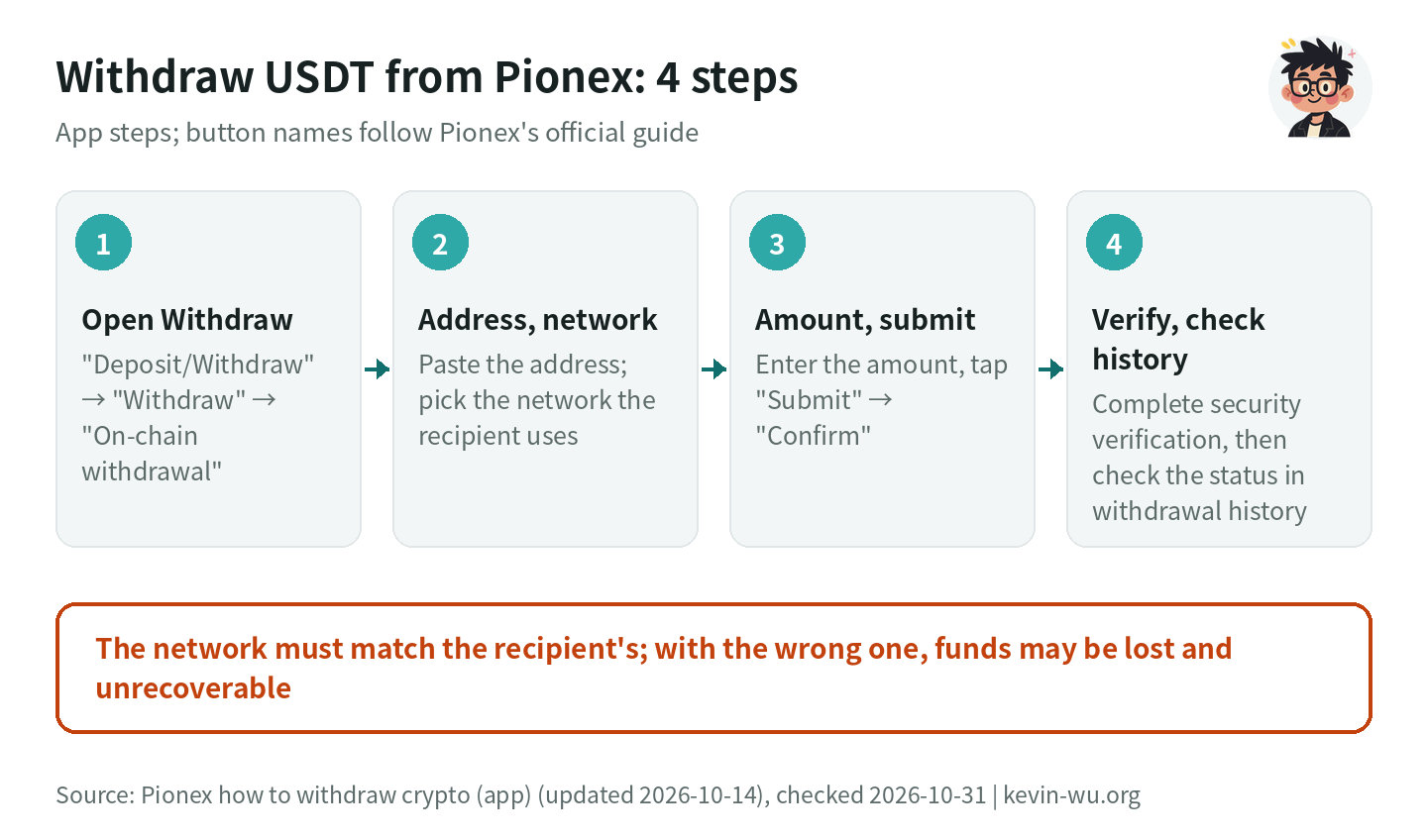
Withdrawal steps on the website
- Log in to Pionex and click “Wallet” → “Withdraw” → “Withdraw”.
- Click the drop-down arrow, then search for and select the coin to withdraw, for example USDT.
- Select the network, which must match the receiving platform or wallet; enter the withdrawal address and amount, then click “Submit” → “Continue”.
- Enter the security verification codes and click “Confirm” → “Confirm”; you can then check the withdrawal status.
Withdrawal steps in the app
- Log in to the app and tap “Home” → “More” → “Deposit/Withdraw” → “Withdraw” → “On-chain withdrawal”.
- Select the coin, enter the withdrawal address, and tap “No network/chain selected” to pick the same network as the recipient.
- Tap “Submit” → “Confirm”.
- Enter the security verification codes, then tap “Confirm” → “View withdrawal history” to see the status of this withdrawal.
The steps are based on Pionex: How to withdraw crypto (website) (updated 2026-10-10) and (app) (updated 2026-10-14). Pionex states that you must bind Google Authenticator before withdrawing; SMS and email codes are valid for 8 minutes and Google Authenticator codes for 30 seconds. Once you have created a passkey, a withdrawal needs just one face or fingerprint scan instead of three verification codes entered one after another (Pionex passkey introduction). If you end up in “Internal transfer” in the app and the screen asks for an 8-digit number, you picked the wrong option; switch to “On-chain withdrawal” to send to an external wallet.
The same tutorial also states that once a withdrawal shows “Completed”, the funds have left Pionex, and Pionex cannot trace, freeze or reverse them. If the recipient requires a Memo and you left it out, take the TXID to the receiving platform’s support. The system checks whether the address format matches the chosen network: if you select BEP20 but paste a BTC address starting with bc1, for example, you get “Invalid address” and cannot submit, and nothing shows up in your withdrawal history. That is the check working as intended.
What are Pionex’s USDT withdrawal fees and minimum withdrawals?
| Network | Withdrawal fee (USDT) | Minimum withdrawal (USDT) | Fee as a share of a 100 USDT withdrawal |
|---|---|---|---|
| TRC20 | 1 | 2 | 1% |
| ERC20 | 1.0522 | 5 | 1.05% |
| BEP20 | 0.2 | 0.6 | 0.2% |
| Arbitrum One | 0.13 | 2 | 0.13% |
| Avalanche C-Chain | 0.081 | 0.25 | 0.081% |
| Optimism | 0.025 | 2 | 0.025% |
| Plasma | 0.011 | 2 | 0.011% |
| Solana | 0.518 | 5 | 0.518% |
Source: Pionex crypto withdrawal fee guide, page marked updated 2026-08-18, checked on 2026-10-31; the figures are the same as when this site checked them on 2026-10-12. The table shows the fixed amount charged per withdrawal; before you tap withdraw, go by the amount shown on the withdrawal page.
Pionex USDT withdrawal fees by network
In USDT; orange marks the more expensive networks. Check the withdrawal page before you submit

- Plasma0.011
- Optimism0.025
- Avalanche C0.081
- Arbitrum One0.13
- BEP200.2
- Solana0.518
- TRC201
- ERC201.0522
The fee is charged per withdrawal, so the less you withdraw, the larger its share. Withdraw exactly the 5 USDT minimum over ERC20 and the 1.0522 USDT fee takes about 21%. If you withdraw 100 USDT 10 times a month, the total comes to about 10.52 USDT on ERC20, 10 USDT on TRC20, 2 USDT on BEP20 and 0.11 USDT on Plasma. That assumes the recipient supports the network; not every exchange or wallet accepts Plasma or Optimism. When this site compared 13 exchanges on 2026-10-12, Pionex’s 1 USDT on TRC20 matched XT and was cheaper than the 1.5 USDT most exchanges charge; only MEXC and HTX were lower, at 0.5 USDT. For transfers back to Taiwanese exchanges (MAX and BitoPro figures are this site’s data from 2026-10-12), MAX does not accept Plasma, so the cheapest route from Pionex to MAX is Avalanche C-Chain (0.081 USDT); BitoPro does not accept Pionex’s cheapest networks, so you have to use BEP20 (0.2 USDT). The full comparison is in USDT withdrawal fee comparison.
Withdrawal limits depend on your KYC level, and unverified accounts have a limit of 0. Level 1 allows USD 20,000 per 24 hours and USD 100,000 per 30 days, calculated on a rolling basis rather than reset at a fixed time. For Level 2, the 24-hour limit is USD 2,000,000 in an official interface screenshot from 2026-08, while a 2021 announcement says USD 1,000,000; your own limit is whatever your KYC page shows. Details are in the Pionex KYC guide, and a comparison across exchanges is in exchange withdrawal limits compared.
How do I set up the withdrawal whitelist and address book?
Pionex keeps the two separate. The address book just stores frequently used addresses to save typing; the withdrawal whitelist is a security switch, and once it is on you can only withdraw to addresses on the list. In the app, go to “Withdraw” → “On-chain withdrawal” → pick any coin → “Address management” in the top-right corner → “Whitelist”, turn on “Withdraw to whitelist only”, then tap “Add new address” and complete verification. On the website, click “Add new address” in the address book under “Wallet” → “Withdraw” and tick “Add to whitelist” (Pionex: What is the withdrawal whitelist).
Three things to know: a newly added whitelist address can only be used after 24 hours; deposits are not affected by the whitelist, but internal transfers are; and the whitelist does not replace the verification on each withdrawal, so withdrawing to a whitelisted address still requires codes or a passkey. If you need to withdraw to an address outside the list, you can add it to the whitelist and wait 24 hours, or temporarily turn off “Withdraw to whitelisted addresses only” and turn it back on afterwards (Pionex: How to withdraw to an address outside the whitelist). My advice is to send a small amount to any new address first and only send larger amounts once it arrives; Pionex’s help also recommends testing with a small amount on a first transfer. A comparison of security settings across exchanges is in exchange account security settings.
Is there a fee to send to another Pionex user?
No. In the app, go to “More” → “Deposit/Withdraw” → “Withdraw” and choose “Internal quick transfer”, enter the recipient’s 8-digit Pionex UID and the amount, check them and tap “Transfer”. The assets arrive instantly with no fee at all, and the minimum is 2 USDT (Pionex internal quick transfer explained, updated 2026-09-07). Even if you use “On-chain withdrawal”, the estimated fee on screen is waived automatically when the receiving address belongs to a Pionex account, and the recipient gets the full amount. Internal transfers do not go through the blockchain, so there is no TxID; they cannot be reversed once submitted, so check the UID digit by digit with the recipient before you send. You can find your own UID by tapping your profile picture on the app’s home screen (Pionex: How to find my UID); what else a UID is used for is covered in what an exchange UID is.
How long do Pionex withdrawals take, and what does each status mean?
In the app, your withdrawal history is behind the clock icon in the top-right corner of “Withdraw” → “On-chain withdrawal”; on the website, scroll down on the “Wallet” → “Withdraw” page. The summary on Pionex’s official page says “Under review” takes up to 30 minutes and “Processing” on-chain up to 1 hour. Here is what each status means (Pionex: How to check withdrawal progress):
| Status | Official description | Can it be canceled? |
|---|---|---|
| Under review | The compliance review is usually done within 10 minutes; there may also be a transaction risk review and a system queue, and the time depends on the case | Yes; after you cancel, the frozen funds return to your account |
| Reviewed, withdrawing | The request has been approved and the system is sending the funds | No |
| Processing | Submitted to the blockchain for confirmation; the time depends on the number of blocks and network congestion | No |
| Completed | The funds have left your Pionex account | No |
| Canceled / Rejected | Canceled by you, or rejected by the system | — |
Once the status is “Completed”, it comes down to the recipient’s confirmations and crediting speed. If it takes longer than the times above or the withdrawal is rejected, give your Pionex UID and a short description of the problem to live support, or email [email protected]. If the status shows rejected but the transaction can be found on the blockchain, contact support with the TXID to check it first, and do not submit the withdrawal again.
What to do if a Pionex withdrawal is stuck or fails
The table below lists the situations in Pionex’s official help that can pause, delay or fail a withdrawal. Several of them clear on their own once the time is up:
| Situation | What Pionex says | What to do | Source |
|---|---|---|---|
| Changed security settings | After you reset your password, unbind your phone or email yourself, or bind Google Authenticator, withdrawals are blocked for 24 hours; the password-reset restriction also covers transfers from the main account to the card or payment account | Restored automatically after 24 hours | Reset password, Change phone / email, Bind Google Authenticator |
| Login from a new IP or device | Withdrawals may be temporarily locked; frequent IP changes caused by a VPN or proxy can also trigger this | Check the unlock time shown on the withdrawal screen, stay logged in on the same IP and device in the meantime, and turn off your VPN | Withdrawal restrictions for a new IP / device |
| Coins bought with fiat | Coins bought through quick buy or C2C can by default only be withdrawn after T+1 (24 hours); if you chose “Remove quick buy restriction”, it is T+60 | Wait for the lock period to end; each order’s unlock time is calculated separately | Quick buy, C2C |
| Risk control review | The initial review is automatic and takes about 10 minutes; if it does not pass, it moves to a manual advanced review, which may ask for more documents or an in-person identity check (face scan). This step cannot be skipped | Provide what the page or email asks for; Pionex generally replies within 3 business days after each submission | Withdrawal risk control review explained |
| Wallet maintenance | What is paused is the deposit and withdrawal channel for that network; your account assets are not affected, and spot and futures trading usually continue as normal | Check the expected time in Pionex’s announcement, or use another network that is open | Wallet maintenance explained |
| Balance shown but “Insufficient funds” | The funds are in the futures or Pionex Card account, or tied up by running bots or unfilled orders | Transfer them back to the main account, or stop the bots and cancel the orders | USDT balance troubleshooting |
| Status completed but recipient has nothing | The funds have left Pionex, and Pionex cannot trace or reverse them | Contact the receiving platform or wallet with the TXID | Withdrawal tutorial (app) |
Sources are linked in the table, checked on 2026-10-31. Pionex also warns against depositing from or withdrawing to sanctioned or high-risk entities, as this may lead to account restrictions; the examples it gives include Huione, Tornado Cash and Garantex, and the list is updated from time to time.
For more complicated cases such as a restricted account or requests for more documents, see what to do if your exchange account is frozen. One more warning: none of the official procedures above asks you to pay an “unfreezing fee”, “deposit” or “tax” first. Pionex’s deposit help also states that Pionex will never ask for your private key or seed phrase. Treat anyone who says you must send money before you can withdraw as a scammer; common tactics are in fake exchange withdrawal scams, and in Taiwan you can call Taiwan’s 165 anti-fraud hotline to check.
FAQ
Are there fees to deposit on Pionex?
Crypto deposits are free; what you pay is the sending side’s withdrawal fee. Watch the minimum deposit: USDT needs at least 1 USDT on TRC20 and ERC20 and 0.1 USDT on the other networks, and anything below that is neither credited nor refunded. If you buy with a bank card, cards issued in Taiwan pay 2.6%–2.8% per transaction, plus up to 0.5 U.
Which network is cheapest for withdrawing USDT from Pionex?
As checked on 2026-10-31, Plasma is the cheapest at 0.011 USDT per withdrawal, followed by Optimism at 0.025 USDT. The common BEP20 costs 0.2 USDT, TRC20 1 USDT and ERC20 1.0522 USDT. Before you choose, make sure the recipient supports the network; for example, the cheapest route to MAX is Avalanche C-Chain.
How long does a Pionex withdrawal take to arrive?
The summary on Pionex’s official page says “Under review” takes up to 30 minutes and “Processing” on-chain up to 1 hour, and the compliance review is usually done within 10 minutes; after that it depends on the recipient’s confirmations. If the withdrawal goes to manual risk review, the time cannot be estimated, and Pionex generally replies within 3 business days after each submission of documents.
Can I deposit and withdraw in New Taiwan dollars on Pionex?
For deposits, yes: you can buy crypto with a Visa or Mastercard card in TWD, NT$400–100,000 per transaction, after completing Level 2 verification. For withdrawals, no: Pionex states that selling crypto into a local Taiwanese bank account as TWD is not supported, and C2C is not open to Taiwan either. The usual approach is to send USDT to a Taiwanese exchange and convert it back to TWD there; see withdrawing USDT to a Taiwanese bank.
Can I deposit and withdraw on Pionex without KYC?
No. Unverified accounts cannot deposit or trade, and their withdrawal limit is 0. Level 1 verification is enough to deposit and withdraw, with up to USD 20,000 per 24 hours; buying crypto with fiat, card purchases and large USD deposits and withdrawals all require Level 2 verification.
Why can’t I withdraw from Pionex after changing my password?
This is a Pionex security measure: withdrawals are paused for 24 hours after a password reset, and the same applies when you unbind your phone or email yourself or bind Google Authenticator. They resume automatically once the time is up. The 24 hours after a password reset are counted in the local time of the device you used, so if you move across time zones the unlock time may differ from what you expect. Do not trust anyone who claims they can lift the restriction early for a payment.
If you don’t have a Pionex account yet, enter the referral code KEVINWU when you sign up, or sign up directly through this site's sign-up link. The current trading fee discount is 15%, paid back to your main account in USDT after you trade. Pionex’s rebate rules state that the invitee must make a first deposit and trade within 30 calendar days of signing up; only trades after that count toward the rebate. So once you have signed up, follow the steps in this article to deposit and place your first order within 30 days.
The referral code and sign-up steps are in Pionex referral code, and if you forgot to enter one when signing up, see adding a Pionex referral code after sign-up. Identity verification steps are in the Pionex KYC guide, trading fees and how bot fees are calculated in Pionex fees, and reserves and security record in Pionex review. For deposit and withdrawal guides on other exchanges, see how to deposit and withdraw on MEXC, how to deposit and withdraw on XT and how to deposit and withdraw on Binance.
Want to see these updates more often in Google Search? Add Kevin Wu as a preferred source on Google